How we make this list: we compare pricing pages, product documentation and public user reviews. Ratings come from G2, Capterra or Trustpilot, with the date we checked them.
Key takeaways
- Canva and Adobe Express suit teams that already design social graphics, because video, images, and brand kits live in one place.
- InVideo, FlexClip, and Renderforest suit marketers who need template-led videos fast, with stock footage, music, and text animation.
- Kapwing and Pictory suit creators who turn long text, scripts, or recordings into short social videos with captions.
- Biteable suits simple explainer and internal videos, where a clean template matters more than advanced editing control.
Quick comparison
| Tool | Best for | Starting price | Free plan |
|---|
 Canva Canva | Design plus video in one tool | See website | Yes |
 InVideo InVideo | Template-led marketing videos | See website | Yes |
 Adobe Express Adobe Express | Adobe-linked social video | See website | Yes |
 FlexClip FlexClip | Fast template videos | See website | Yes |
 Renderforest Renderforest | Branded intro and promo videos | See website | Yes |
 Biteable Biteable | Simple explainer videos | See website | Free trial |
 Kapwing Kapwing | Social video editing and captions | See website | Yes |
 Pictory Pictory | Text-to-video and short clips | See website | Free trial |
Is your product missing or out of date?
We review this list regularly. Vendors can request a listing, send updated pricing or ask about featured placement.
The best Animoto alternatives for simple video creation
Animoto turns photos, clips, and text into slideshow-style videos with music, which suits marketers, small businesses, and educators who need a polished video without learning a full editor. The tools below cover the same need in different ways. Some are design platforms with video added. Some are template video makers. Others turn a script or a long recording into short, captioned clips. Start with your source material: photos, a script, a long video, or a brand kit. The best tool is the one that starts closest to what you already have.
#1Canva
Best for: Design plus video in one tool4.7/5 on
G2 (7,678 reviews, checked Oct 2026)
Visit canva.com
Starting priceSee website
Free planYes
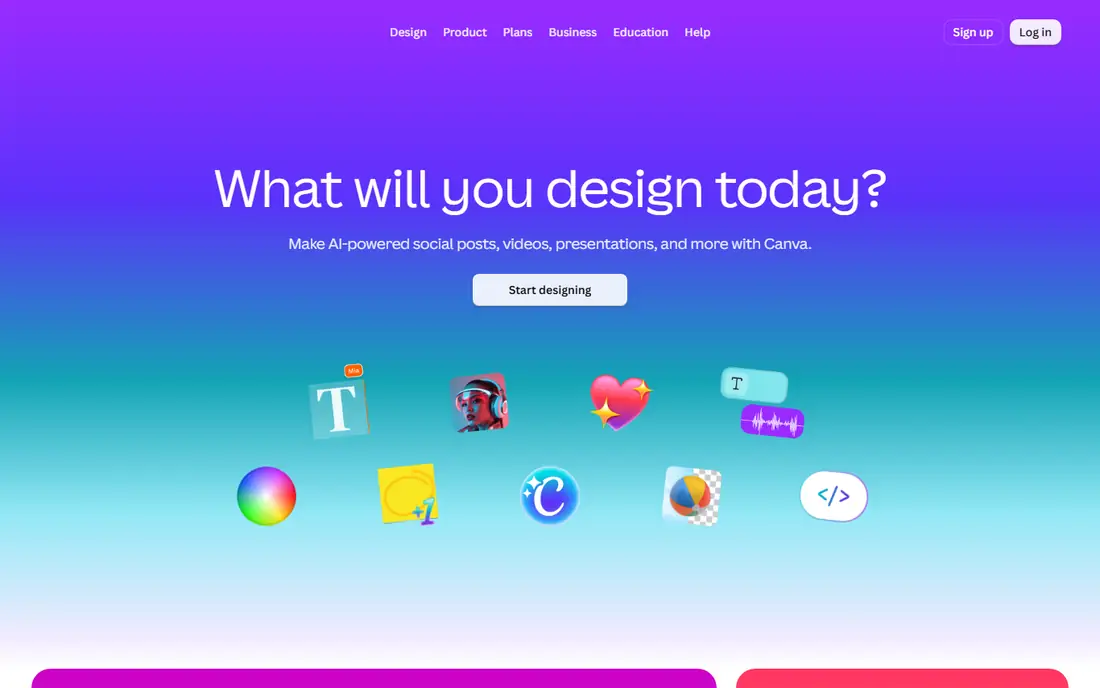
Canva lets teams design social posts, presentations, and videos in one account, which helps small teams that already use Canva for graphics. The video editor uses a timeline, with drag-and-drop clips, text animation, transitions, and music. Templates cover social ads, product promos, slideshows, and event videos, and brand kits keep colors, fonts, and logos consistent across designs. A marketer can turn a Canva social design into a video version without moving files between tools.
Editing depth is the limit. Canva handles simple cuts, text, and effects well, but it lacks the fine control of a dedicated editor for color, audio mixing, and complex layering. Export options and video length also depend on plan. Canva fits small businesses, educators, and social teams that want one tool for design and video. Teams that need advanced editing should pair Canva with Kapwing or a desktop editor.
What we like- Video editor inside a full design platform
- Large template, stock, and music library
- Brand kits for consistent colors and fonts
Watch out for- Timeline editing is simpler than a dedicated video editor
- Advanced effects and audio mixing are limited
#2InVideo
Best for: Template-led marketing videos4.2/5 on
G2 (183 reviews, checked Oct 2026)
Visit invideo.io
Starting priceSee website
Free planYes
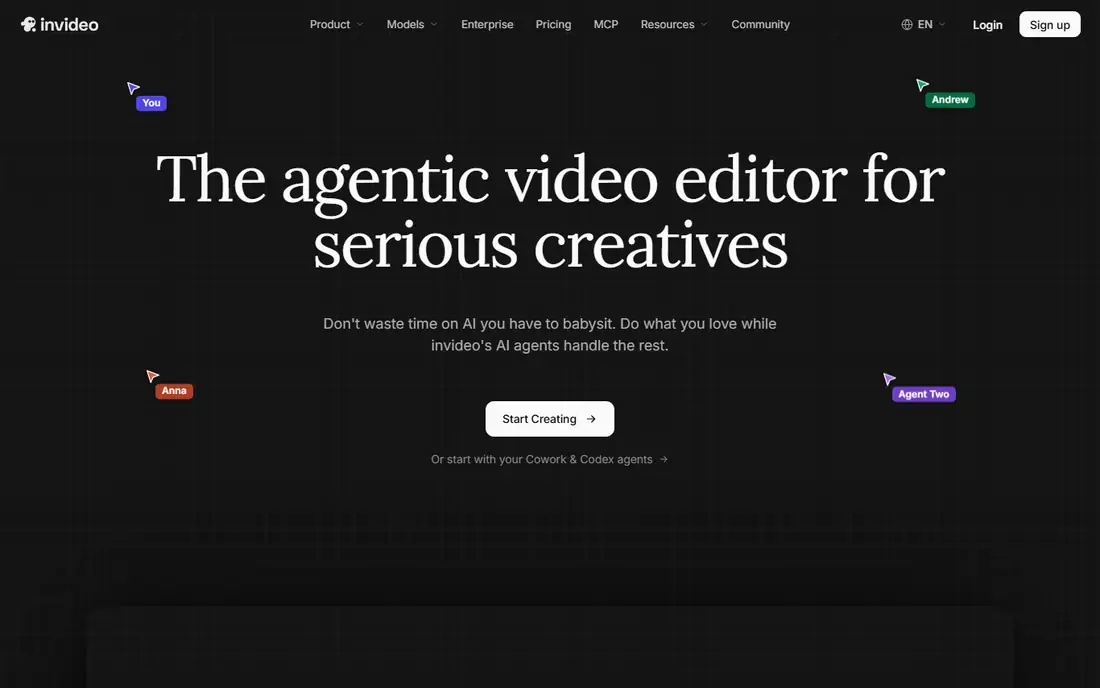
InVideo is built for marketers who need a finished video quickly. Users pick a template for a product ad, a social promo, or a slideshow, replace text and media, add music, and export. The stock library covers footage, images, and music, so a team without its own footage can still build a professional-looking video. AI features can turn a script or prompt into a draft video, which editors can then refine.
The free plan includes a watermark, so published work usually needs a paid plan. Template use also means videos can look similar unless a team customizes colors, fonts, and footage carefully. InVideo fits marketing teams, agencies, and small businesses that produce many short videos and value speed over full editing control. Creators who want a unique style should invest time in custom templates and original footage.
What we like- Large template library for ads, promos, and social videos
- Stock footage and music included
- AI text-to-video options
Watch out for- Free plan adds a watermark
- Template-heavy results can look similar across brands
#3Adobe Express
Best for: Adobe-linked social video4.5/5 on
G2 (855 reviews, checked Oct 2026)
Visit adobe.com
Starting priceSee website
Free planYes
Adobe Express combines design, photo, and video tools in a browser and mobile app, aimed at social teams and small businesses. Video templates cover promos, announcements, and social stories, with text animation, music, and stock assets from Adobe. Quick actions resize a video for different social formats, remove backgrounds from images, and convert file types, which saves time for teams that publish across platforms. Brand kits keep logos, colors, and fonts consistent.
Video editing remains simpler than Adobe Premiere, with limited timeline control and audio tools. Adobe Express fits teams that already use Adobe tools, or that want a simple Adobe-linked option for social video. Teams that need deep editing, captions at scale, or script-to-video workflows should compare InVideo, Kapwing, or Pictory instead.
What we like- Simple video and design tools with Adobe stock and fonts
- Brand kits and quick actions
- Easy social resizing
Watch out for- Video editing depth is limited
- Best value comes with other Adobe tools
#4FlexClip
Best for: Fast template videos4.6/5 on
G2 (68 reviews, checked Oct 2026)
Visit flexclip.com
Starting priceSee website
Free planYes
FlexClip offers a browser video editor with templates for business promos, slideshows, tutorials, and social videos. Users can drag clips onto a timeline, add text, transitions, and music, and use stock footage when they lack their own media. Slideshow mode suits photo-based videos in the Animoto style, while timeline mode gives more control over order and timing. Screen recording helps tutorial creators capture a process and turn it into a video.
The free plan limits video length, resolution, and stock use, and it adds a watermark, so regular publishing needs a paid plan. Advanced color, audio, and effects tools are also basic compared with desktop editors. FlexClip fits small businesses, teachers, and marketers who want a fast, template-led video maker in a browser. Power users will likely outgrow it for complex projects.
What we like- Simple timeline editor with many templates
- Stock video, music, and photo library
- Screen recording and slideshow modes
Watch out for- Free plan limits exports and adds a watermark
- Advanced editing features are basic
#5Renderforest
Best for: Branded intro and promo videos4.7/5 on
G2 (447 reviews, checked Oct 2026)
Visit renderforest.com
Starting priceSee website
Free planYes
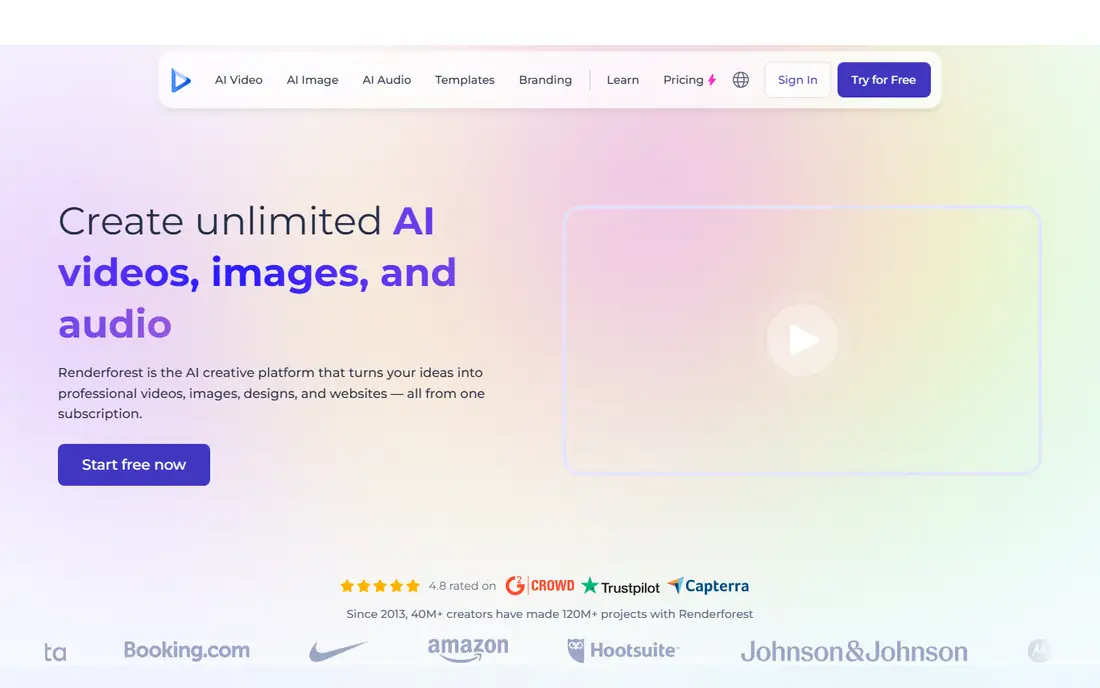
Renderforest is known for logo animations, intros, explainer videos, and promos built from templates. A business can animate a logo, build a product promo from scenes, and add music and voiceover through a guided flow. The platform also includes website building and graphic design tools, so a small business can manage a basic brand presence in one account. That breadth helps teams without a designer.
Template results can look generic if a team uses default colors, fonts, and scenes without changes. Free exports are limited, with watermarks on many plans, so published work usually needs a paid subscription. Renderforest fits startups and small businesses that need a polished intro, logo animation, or promo fast. Teams that publish daily social videos may prefer InVideo or Canva for a wider social template range.
What we like- Strong logo animations, intros, and promo templates
- Website and design tools in the same account
- Guided creation flow
Watch out for- Template style can feel generic without customization
- Free exports are limited and watermarked
#6Biteable
Best for: Simple explainer videos4.4/5 on
G2 (26 reviews, checked Oct 2026)
Visit biteable.com
Starting priceSee website
Free planFree trial
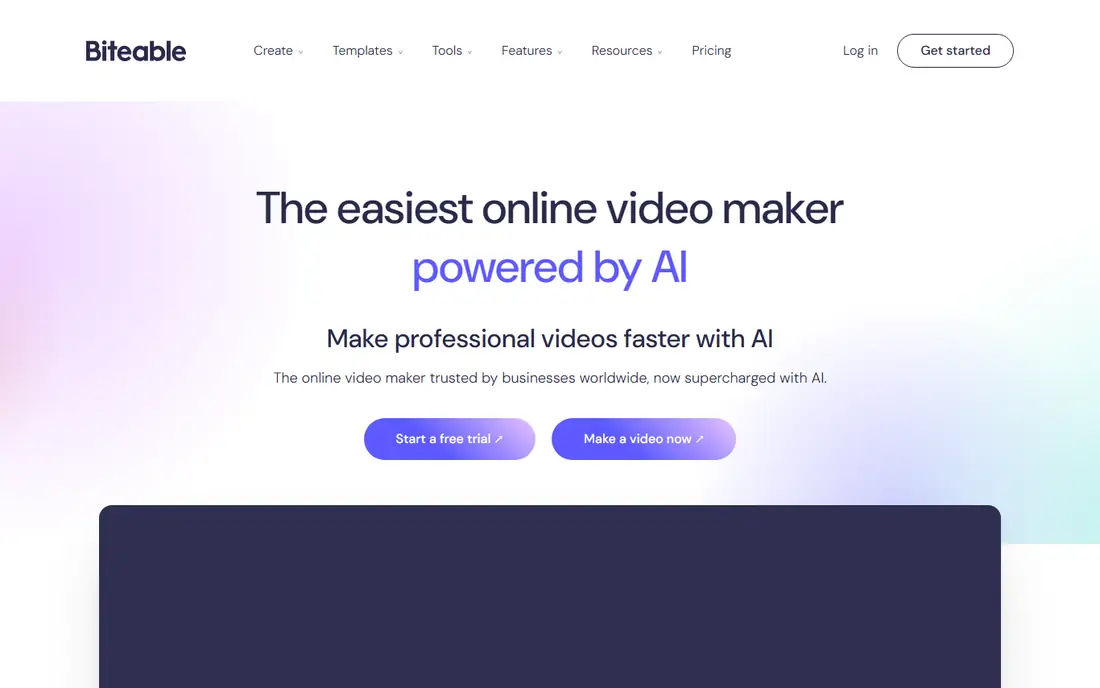
Biteable builds videos from scenes, rather than a free timeline. Users pick animated scenes, add text and voiceover, and arrange scenes into a short explainer, announcement, or training video. Animated characters and illustrations help explain a process or a product without filming, which suits internal training, HR announcements, and simple product explainers. The builder is easy to learn, and most users finish a first video in under an hour.
Scene-based building also limits style. Videos follow the Biteable look unless a team uploads custom footage and designs scenes carefully. Pricing is aimed at regular business use, so casual creators may find cheaper options. Biteable fits teams that need clear, simple explainer videos on a regular basis, especially for internal communication. Marketers who need many social ad variations should compare InVideo or Canva.
What we like- Very simple scene-based builder
- Animated scenes and characters for explainers
- Good for internal and training videos
Watch out for- Scene library limits custom styles
- Pricing is higher than some template rivals for casual use
#7Kapwing
Best for: Social video editing and captions3.9/5 on
G2 (40 reviews, checked Oct 2026)
Visit kapwing.com
Starting priceSee website
Free planYes
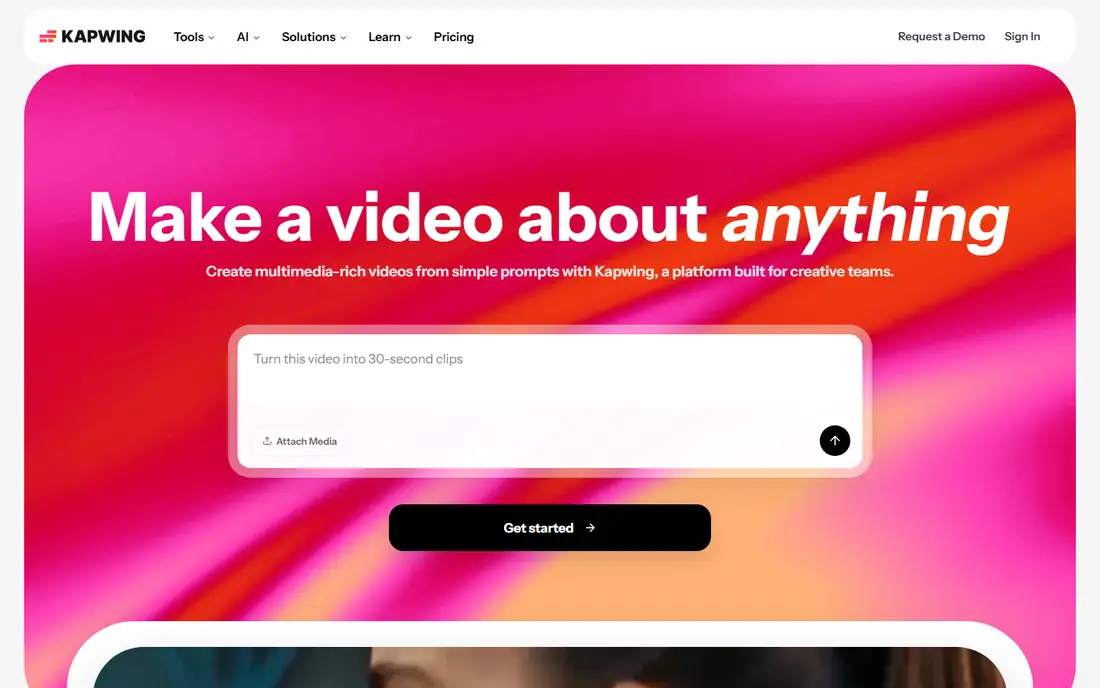
Kapwing is a browser video editor popular with social creators and small teams. It covers trimming, captioning, resizing, subtitles, and meme-style edits, with AI tools that generate captions, find clip highlights, and clean up audio. Collaboration lets team members comment and edit in the same project, which helps social teams that review videos before posting. Templates and stock assets speed up common social formats.
The free plan adds a watermark and limits export quality and duration, so regular publishing needs a paid plan. Browser editing also depends on internet speed and device power for larger files. Kapwing fits creators and social teams that edit short videos in a browser and need captions fast. Teams that need template-led promos from scratch may prefer InVideo, while teams that need desktop-grade editing should look beyond browser tools.
What we like- Browser editor with captions, trimming, and resizing
- AI tools for clips and subtitles
- Good collaboration features
Watch out for- Free plan adds a watermark and limits exports
- Performance depends on browser and internet speed
#8Pictory
Best for: Text-to-video and short clips4.6/5 on
G2 (81 reviews, checked Oct 2026)
Visit pictory.ai
Starting priceSee website
Free planFree trial
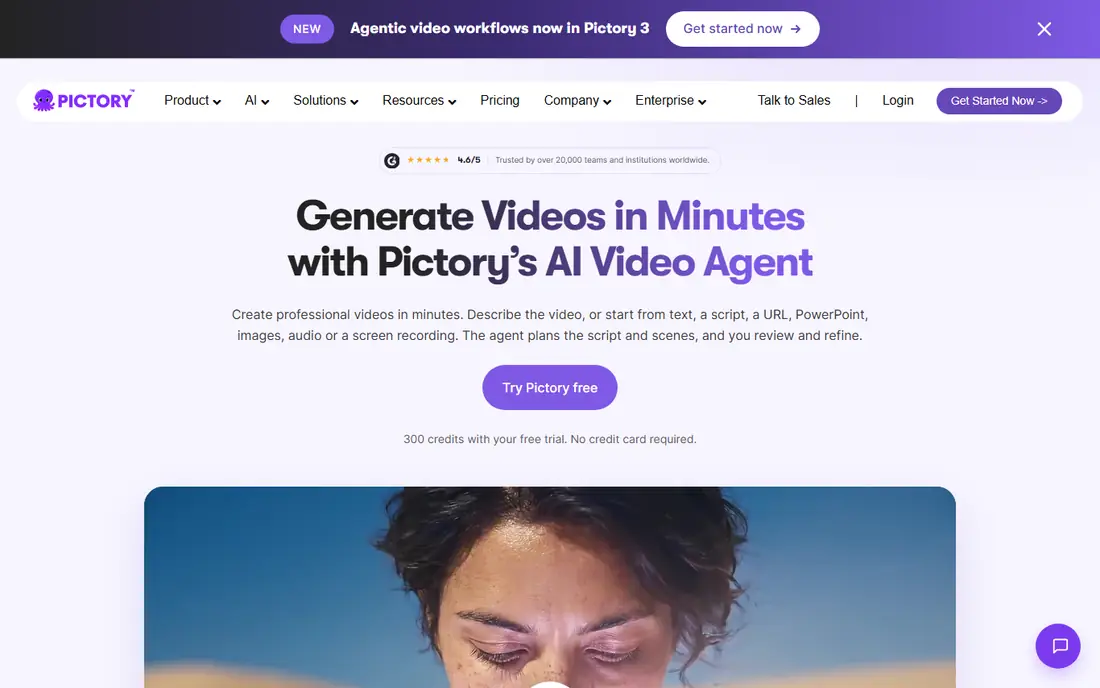
Pictory turns text into video, which suits bloggers, marketers, and educators with written content but little footage. Paste a script or article, and Pictory builds scenes with stock footage, captions, and voiceover, which an editor can then adjust. It can also cut long recordings, such as webinars and podcasts, into short clips for social media, with captions added automatically. That repurposing saves hours for teams that already produce long content.
AI footage choices are not always perfect, and editors should review each scene for relevance, tone, and accuracy before publishing. Manual control is also less precise than a full timeline editor. Pictory fits content teams that want to turn blogs, scripts, and long videos into short social videos at scale. Teams that film original footage and need precise editing will likely prefer Kapwing or a desktop editor.
What we like- Turns scripts, articles, and long videos into short videos
- Automatic captions and voiceover
- Stock footage matching
Watch out for- AI-chosen footage needs review and correction
- Less control than manual timeline editing
How we chose
We compared vendor documentation, pricing pages, and public reviews on G2, Capterra, and Reddit, focusing on ease of use, template quality, stock assets, caption tools, export options, and fit for marketers, educators, and creators. Each tool here exists today and offers a real video creation product a US reader can buy or trial. Where a price could not be confirmed at the time of writing, the entry reads See website, because video pricing varies by plan, exports, and AI credits. We did not run hands-on video tests, and the order reflects ease, template range, and repurposing strength rather than a lab score.
Making a short video that looks finished
A finished video needs more than a template. It needs a clear message, readable text, clean audio, and a length that fits the platform. Most social videos work best under sixty seconds, with the main point in the first few seconds. Text should be large enough to read on a phone, and captions help viewers who watch without sound. Music should support the message, not compete with a voiceover.
Start from a script, not from clips
Write a short script first: a hook, one main point, and a call to action. That script guides scene choice, text, and voiceover, and it prevents a video that wanders through clips without a point. For slideshow videos, match each script line to one image or clip, rather than packing many ideas into one scene.
Check exports before publishing
Export a test video and watch it on a phone, with sound off and sound on. Check caption accuracy, text size, logo placement, and audio levels. A video that looks good on a desktop editor can still have unreadable text or quiet voiceover on a phone. Fix those issues before scheduling a full campaign.
Reuse one video in several formats
Cut a longer video into short clips, resize for vertical and square formats, and add captions for silent viewing. Tools like Kapwing and Pictory help with resizing and clipping, while Canva and Adobe Express help with format variations. Reuse saves production time, but each format still needs a quick check for text cropping and safe zones.
Frequently asked questions
What is the best Animoto alternative for slideshows?
FlexClip and InVideo are strong slideshow picks, with photo-to-video templates, music, and text animation. Canva also handles photo slideshows well, especially for teams that already design in Canva. Pick FlexClip for a simple browser slideshow, and InVideo for a wider marketing template range.
Can I make videos for free?
Yes, Canva, InVideo, Adobe Express, FlexClip, Renderforest, and Kapwing offer free plans, though most add watermarks or limit exports. For a watermark-free published video, expect a paid plan on most tools. Free plans work well for testing templates and learning the editor before paying.
Which tool is best for social media videos?
Canva, InVideo, and Kapwing are the strongest social picks in this list. Canva covers design and video together, InVideo covers template ads and promos, and Kapwing covers editing, captions, and resizing. The best pick depends on whether you start from a design, a template, or an existing recording.
Do I need my own footage to use these tools?
No. Most tools include stock footage, images, and music, so you can build a video without filming. Original footage still helps a brand stand out, because stock-only videos can look generic. Mix stock with your own product photos, clips, and logo for a more distinctive result.
Which alternative turns a blog post into a video?
Pictory is built for that job, turning articles and scripts into captioned videos with stock footage and voiceover. InVideo also offers text-to-video features from scripts. Review AI-chosen footage and captions carefully, because automated choices can miss tone or detail in the original text.
Is a browser editor enough for business videos?
For short social, promo, and explainer videos, yes. Browser editors in this list handle templates, captions, trimming, and exports well. For long-form, color-critical, or audio-heavy work, a desktop editor still offers more control. Many teams use a browser tool for daily social videos and a desktop editor for flagship projects.
Sources we checked (8)
- https://www.canva.com/pricing/
- https://invideo.io/pricing/
- https://www.adobe.com/express/pricing.html
- https://www.flexclip.com/pricing.html
- https://www.renderforest.com/pricing
- https://biteable.com/pricing/
- https://www.kapwing.com/pricing
- https://pictory.ai/pricing/
Is your product missing or out of date?
We review this list regularly. Vendors can request a listing, send updated pricing or ask about featured placement.

Shihab Mia · Founder, Rankite
Shihab has 5+ years in B2B and SaaS SEO. He writes Rankite's software buying guides from pricing pages, documentation and public user reviews. More about Shihab.