How we make this list: we compare pricing pages, product documentation and public user reviews. Ratings come from G2, Capterra or Trustpilot, with the date we checked them.
The short answer: which Screencastify alternative should you pick
For most people, Loom is the best Screencastify alternative, because Business costs $18 per user per month and covers unlimited videos, 4K recording and editing. Anyone on a zero budget should pick OBS Studio, which is free and open source with no watermark and no time limit. Teachers who need classroom tools should stay with Screencastify or look at ScreenPal, and anyone who needs a full video editor should pick Camtasia.
Key takeaways
- Screencastify Starter costs $7 per user per month billed annually, and Pro costs $10, with a free tier limited to 10 videos of 30 minutes each.
- OBS Studio is free forever, with no watermark and no recording limit, and it is the best pick for anyone on a zero budget.
- Loom Business at $18 per user per month is the best all-round paid replacement for async video.
- Camtasia Essentials at $179.88 a year is the pick when the job needs a full editor, not just a recorder.
- ScreenPal Deluxe at about $3 a month is the cheapest paid plan on this list.
Why teams look for a Screencastify alternative
Screencastify is a browser-based screen recorder built for education first. It records a browser tab, a full screen or a webcam, edits in the browser, and shares straight to Google Drive, YouTube or Google Classroom. That workflow is hard to beat for a teacher making a quick lesson. The reason people shop around is limits and price. The free tier allows only 10 videos with a 30-minute cap per recording. Starter costs $7 per user per month billed annually, or $19 month to month, and Pro costs $10 per user per month billed annually, or $25 month to month. Pro adds AI titles, captions, transcripts and translations, plus 180-minute recordings and 4K quality.
The other reason is that Screencastify is a Chrome and Edge extension at heart. Anyone who records desktop apps, games or long training sessions often needs a desktop recorder, and anyone who needs a polished edited video needs a real editor. The tools below split into three groups: browser and async video tools such as Loom and Vimeo, desktop recorders such as OBS Studio, Camtasia, Snagit, Movavi and Zight, and the budget option ScreenPal.
The 8 best Screencastify alternatives compared
| Tool | Best for | Starting price | Free plan |
| Loom | Async video for work and training | $18 per user per month | Yes, 25 videos |
| OBS Studio | Free recording with no limits | Free | Yes, fully free |
| Camtasia | Recording plus a full video editor | $179.88 per year | Trial only |
| ScreenPal | Cheap and simple recording for classrooms | $3 per month | Yes, with watermark |
| Snagit | Screenshots plus quick recordings | $39 per user per year | 15-day trial |
| Movavi Screen Recorder | Simple desktop recording on a budget | $44.95 per year | Trial with watermark |
| Vimeo | Recording plus hosting in one place | $9 per month | Yes, Basic |
| Zight | Fast sharing links with screenshots and GIFs | $9.95 per user per month | Yes, limited |
Quick comparison
| Tool | Best for | Starting price | Free plan |
|---|
 Loom | Async video for work, training and customer support | $18 per user per month (Business, billed monthly; $15 billed annually) | Yes, Starter with 25 videos of up to 5 minutes each |
 OBS Studio | Free recording and live streaming with no limits | Free | Yes, fully free and open source |
 Camtasia | Recording plus a full video editor for polished training content | $179.88 per year (Essentials; Starter capture-only plan is $39 per year) | No, free trial only |
 ScreenPal | Cheap and simple recording for classrooms and small teams | $3 per month (Deluxe, billed annually) | Yes, unlimited recordings of up to 15 minutes with a watermark |
 Snagit | Screenshots plus quick screen recordings for guides and support | $39 per user per year (Individual, billed annually) | No, 15-day trial only |
 Movavi Screen Recorder | Simple desktop recording on a budget for Windows and Mac | $44.95 per year (1-year subscription; lifetime licence about $59.95) | No, trial with a watermark |
 Vimeo | Recording plus hosting in one place with strong privacy controls | $9 per month (Creator, after the November 2026 restructure) | Yes, Basic with limited videos |
 Zight | Fast sharing links with screenshots, GIFs and short recordings | $9.95 per user per month (Individual, billed annually) | Yes, limited free plan |
Is your product missing or out of date?
We review this list regularly. Vendors can request a listing, send updated pricing or ask about featured placement.
The 8 best Screencastify alternatives
#1Loom
Best for: Async video for work, training and customer support4.7/5 on
G2 (2,415 reviews, checked Oct 2026)
Visit loom.com
Starting price$18 per user per month (Business, billed monthly; $15 billed annually)
Free planYes, Starter with 25 videos of up to 5 minutes each
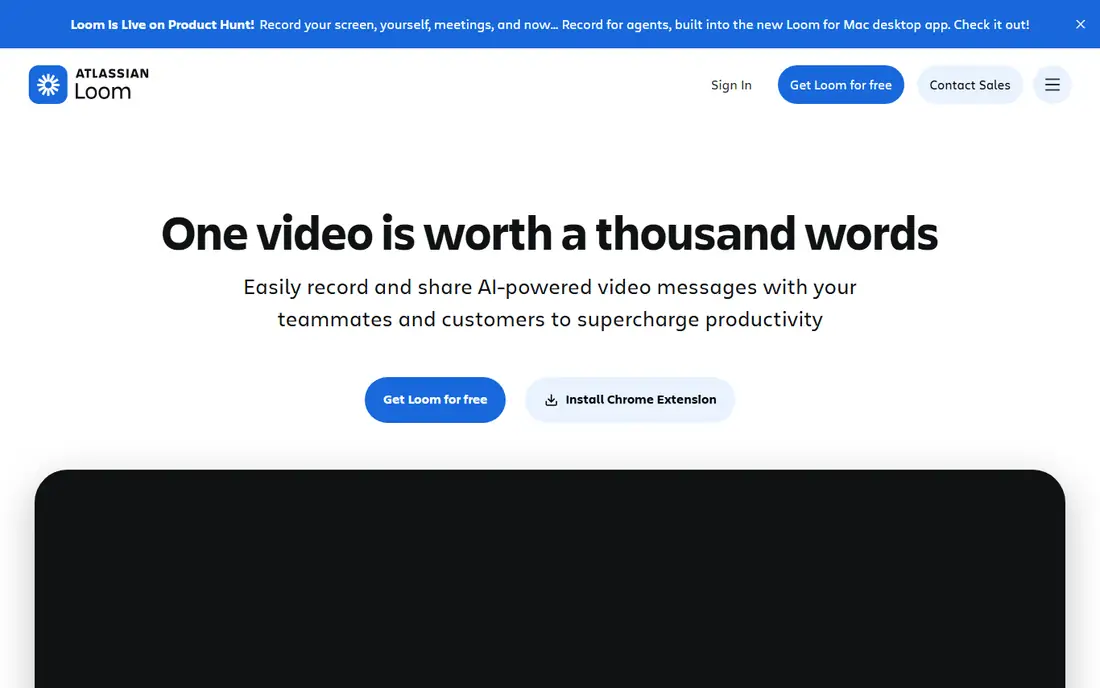
Loom is the best all-round replacement for Screencastify because it does the same job with fewer limits and a cleaner share flow. A user records screen, webcam or both, trims the clip, and shares a link that plays in any browser, with comments and emoji reactions for feedback. Business costs $18 per user per month billed monthly, or $180 a year on annual billing, and removes the Starter caps on video count and recording length, adding 4K recording. The free Starter plan covers 25 videos of up to 5 minutes, which is enough to test the workflow properly. The gaps are classroom features and price. Loom has no LMS integration, no assignment collection and no FERPA-focused admin controls, so a school should stay with Screencastify or ScreenPal. It is also more expensive than Screencastify Pro for a single user.
What we like- The fastest recording and sharing workflow here, unlimited videos on paid plans, viewer insights and comments
Watch out for- AI summaries and chapters sit on the Business plus AI tier at $24 per user per month, and legacy customers report price rises as accounts move to Atlassian billing
#2OBS Studio
Best for: Free recording and live streaming with no limits4.6/5 on
G2 (138 reviews, checked Oct 2026)
Visit obsproject.com
Starting priceFree
Free planYes, fully free and open source
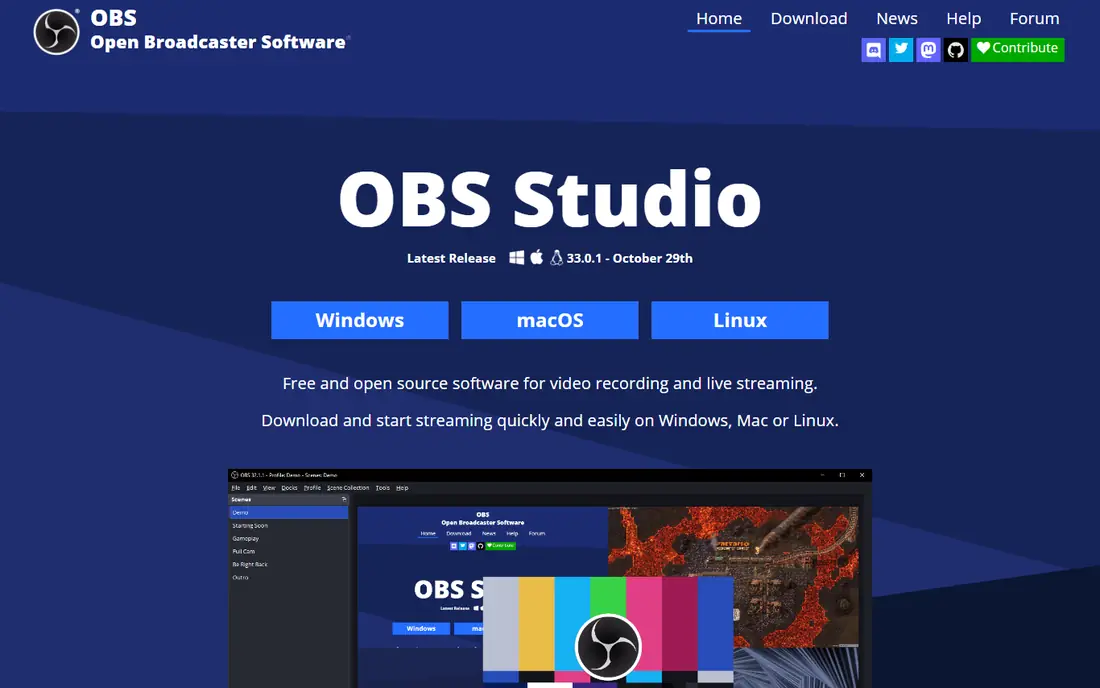
OBS Studio is the only tool on this list that costs nothing and imposes no limits, which makes it the obvious pick for anyone on a zero budget. It records the screen, a webcam, a game or a window, mixes multiple sources into scenes, and saves a local file with no watermark and no time cap. The plugin library adds virtual cameras, noise suppression, closed captions and stream overlays, and the same app can live stream to YouTube, Twitch or Facebook. The trade is effort. OBS has no editor, so a recording that needs cuts has to go through another app, and the settings panel is intimidating for a first-time user. There is also no cloud hosting, so sharing means uploading the file somewhere else. For a teacher or trainer who records often and edits rarely, OBS plus a free editor is the cheapest serious setup available.
What we like- Free forever with no watermark, no time limit and no account, a huge plugin library, scene and source mixing
Watch out for- No built-in editor, a steep learning curve, and no cloud hosting or sharing links
#3Camtasia
Best for: Recording plus a full video editor for polished training content4.6/5 on
G2 (1,769 reviews, checked Oct 2026)
Visit techsmith.com
Starting price$179.88 per year (Essentials; Starter capture-only plan is $39 per year)
Free planNo, free trial only
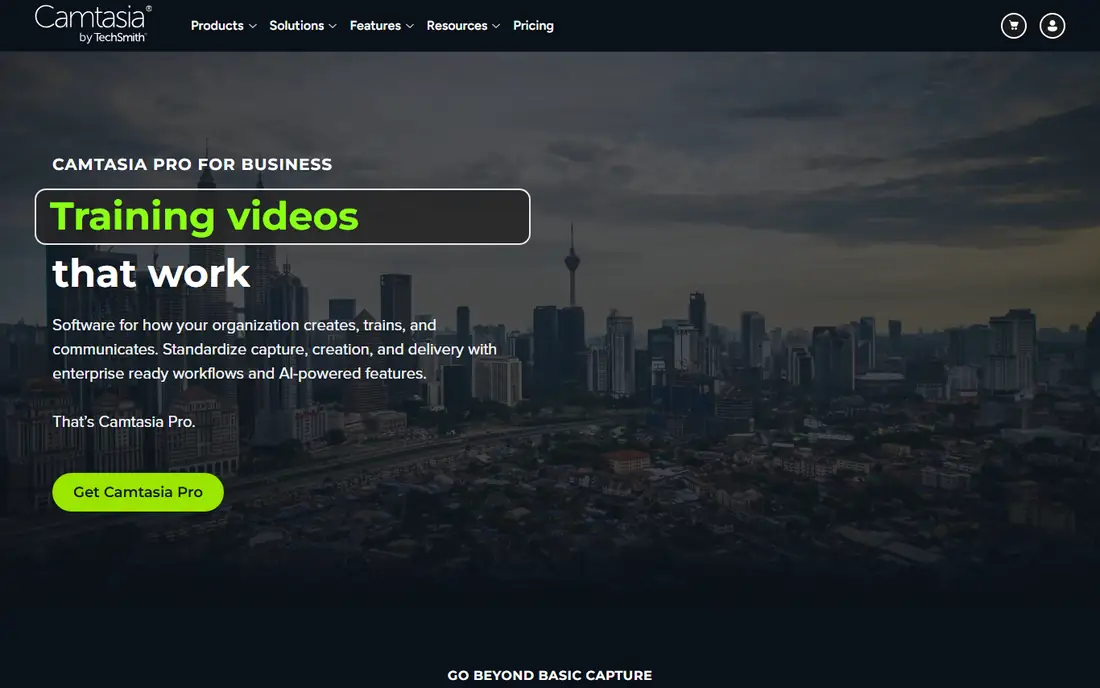
Camtasia is the pick when the recording is only half the job and the edit matters. It captures the screen and webcam, then opens a timeline editor with transitions, callouts, annotations, animations and quizzes, so a rough recording becomes a polished lesson without a second app. Essentials costs $179.88 a year and includes the core editor and recorder, while Create at $249 a year adds AI features and assets, and Pro at $599 a year adds enterprise tools. Every Camtasia plan now includes Snagit, which covers screenshots as well. The trade is cost and weight. Camtasia moved to an annual subscription with the 2025 release, so there is no buy-once option for current versions, and the app is heavy on older hardware. For a team that produces training videos every week, the editor pays for itself. For a teacher who records quick explainers, it is more tool than the job needs.
What we like- A full timeline editor plus recorder in one app, templates and assets, quizzes and interactive elements
Watch out for- An annual subscription now, with no perpetual licence for current versions, and it is heavy on older machines
#4ScreenPal
Best for: Cheap and simple recording for classrooms and small teams4.5/5 on
G2 (139 reviews, checked Oct 2026)
Visit screenpal.com
Starting price$3 per month (Deluxe, billed annually)
Free planYes, unlimited recordings of up to 15 minutes with a watermark
ScreenPal, formerly Screencast-O-Matic, is the closest budget rival to Screencastify. It records screen and webcam, edits with a simple timeline, and hosts the video with a share link, all from one account. Deluxe costs about $3 a month billed annually and removes the watermark and opens the full editor and system audio, while Max and higher tiers add stock media and team features. The free plan allows unlimited recordings of up to 15 minutes, which is more generous than Screencastify's 10-video cap, though the watermark stays. ScreenPal suits teachers and small teams that need a simple recorder and host for a few dollars a month. It lacks the AI captions and translations of Screencastify Pro, and the editor is basic next to Camtasia, so a team that needs polished output should look elsewhere.
What we like- Very cheap, a simple editor, hosting and sharing included, education friendly
Watch out for- A watermark on the free plan, and fewer advanced features than Camtasia or Loom
#5Snagit
Best for: Screenshots plus quick screen recordings for guides and support4.7/5 on
G2 (6,022 reviews, checked Oct 2026)
Visit techsmith.com
Starting price$39 per user per year (Individual, billed annually)
Free planNo, 15-day trial only
Snagit is a screenshot tool first and a recorder second, which is exactly the mix many support teams need. It captures any part of the screen, annotates with arrows, callouts and steps, and turns a sequence of captures into a step-by-step guide. The recorder handles short how-to clips with webcam picture in picture, and sharing to email, Slack or a link takes seconds. Individual costs $39 per user per year billed annually, and Business seats cost $48 per user per year with transferable licences. TechSmith moved Snagit to an annual subscription with the 2025 release, so there is no perpetual licence for current versions, though a 2024 copy is still sold for $49.99 once. Snagit is not a replacement for a full video recorder, since long recordings and editing belong in Camtasia, but for a team that writes illustrated guides all day it is the fastest tool here.
What we like- The best screenshot annotation tools here, scrolling capture, quick sharing and templates
Watch out for- Recording is secondary to screenshots, and current versions are subscription only
#6Movavi Screen Recorder
Best for: Simple desktop recording on a budget for Windows and Mac4.5/5 on
G2 (56 reviews, checked Oct 2026)
Visit movavi.com
Starting price$44.95 per year (1-year subscription; lifetime licence about $59.95)
Free planNo, trial with a watermark
Movavi Screen Recorder is a lightweight desktop recorder for people who want to press record and be done. It captures screen, webcam and audio, takes scrolling screenshots, draws on the recording, and schedules captures, all from a small panel that stays out of the way. The 1-year subscription costs $44.95, often discounted, and a lifetime licence for a single version costs about $59.95. A business licence for commercial use costs about $49.95 per user per year. The limits are sharing and editing. Movavi has no cloud hosting, so a finished video has to be uploaded somewhere else, and the editor covers only trimming and basic cuts. It also has no team admin, SSO or central management, so it suits individuals and very small teams rather than a school or a company rollout.
What we like- Cheap, simple to learn, scheduled recording, scrolling screenshots and drawing tools
Watch out for- No cloud sharing or hosting, basic editing only, and no team admin features
#7Vimeo
Best for: Recording plus hosting in one place with strong privacy controls4.3/5 on
G2 (722 reviews, checked Oct 2026)
Visit vimeo.com
Starting price$9 per month (Creator, after the November 2026 restructure)
Free planYes, Basic with limited videos
Vimeo is the value pick for anyone who already hosts video there, because one subscription covers recording and hosting. The recorder captures screen and webcam, the video lands on a clean branded page, and privacy controls decide who can watch, with password protection on higher tiers. Vimeo restructured its plans in November 2026, and Creator now costs $9 a month, Core $24.50 a month and Professional $71 a month, replacing the old $12 Starter plan. That makes Creator the cheapest paid entry on this list after ScreenPal. The trade is depth. Vimeo's recorder is simpler than Loom, with fewer editing and annotation tools, and the marketing features that compete with Wistia sit on the higher tiers. Pick Vimeo when the team wants one bill for recording and hosting, and pick Loom when the recording workflow itself is the priority.
What we like- Screen recording plus hosting, clean embed player, privacy and password controls
Watch out for- Recording features are basic next to Loom, and storage caps apply on lower tiers
#8
Zight
Best for: Fast sharing links with screenshots, GIFs and short recordings
Visit zight.com
Starting price$9.95 per user per month (Individual, billed annually)
Free planYes, limited free plan
Zight, formerly CloudApp, is built for speed. A user captures a screenshot, a GIF or a short screen recording, and the tool returns a share link in seconds, with annotations and comments on the same page. That workflow suits support and product teams that answer the same question with a quick visual again and again, and integrations with Slack, Jira and Zendesk put the capture where the conversation already happens. Individual costs $9.95 per user per month billed annually, and team plans are reported around $8 to $10 per user per month. The limits are depth and length. Zight is not a lecture recorder or a video editor, and long recordings belong in Loom or Camtasia. For a team that trades in quick visuals rather than long videos, it is the fastest tool on this list.
What we like- Very fast capture-to-link sharing, GIFs and annotations, integrations with Slack and Jira
Watch out for- Recording depth is below Camtasia, and some features sit on higher tiers
How much does switching from Screencastify cost
A single user on Screencastify Pro pays $120 a year billed annually. Loom Business costs $180 a year per user, so the switch costs $60 more a year for unlimited videos and 4K. OBS Studio costs nothing, ScreenPal Deluxe costs about $36 a year, and Movavi costs $44.95 a year, so all three save money against Screencastify Pro. Camtasia Essentials at $179.88 a year costs about $60 more than Screencastify Pro, but it replaces a separate editor. Snagit at $39 a year is cheaper than Screencastify Pro and covers the screenshot half of the job. For a classroom of 30 teachers, the gap widens fast: Screencastify Pro costs $3,600 a year, Loom Business costs $5,400, and ScreenPal Deluxe costs about $1,080. A school should price the whole rollout, not one seat, and check education discounts before deciding.
How to choose a Screencastify alternative
Start with where the recording happens. Browser-only recording suits Loom, Vimeo and ScreenPal, while desktop apps, games and long sessions need OBS Studio, Camtasia or Movavi. Then check the edit. If the video needs cuts, callouts and quizzes, pick Camtasia. If it only needs trimming, Loom or ScreenPal is enough. Then check sharing. A team that shares inside Google Classroom should stay close to Screencastify or ScreenPal, while a team that shares links in Slack or email will be happy with Loom, Vimeo or Zight. Finally, test the free plan with a real lesson. Record a five-minute explainer in each finalist, share it with a colleague, and see which link opens fastest and looks best on a phone. The tool that survives that test is the one the team will keep using.
Frequently asked questions
Is Screencastify free
Screencastify has a free tier, but it is limited to 10 videos with a 30-minute cap per recording. Starter costs $7 per user per month billed annually, or $19 month to month, and Pro costs $10 per user per month billed annually, or $25 month to month. Pro adds AI titles, captions, transcripts and translations, 180-minute recordings and 4K quality. Enterprise and education pricing is custom.
What is the best free Screencastify alternative
OBS Studio is the best free alternative, because it is free forever with no watermark, no time limit and no account. ScreenPal is the best free browser option, with unlimited recordings of up to 15 minutes, though it adds a watermark. Loom Starter is free for 25 videos of up to 5 minutes each. The right free pick depends on whether the recordings are long desktop sessions or short browser clips.
Can OBS Studio replace Screencastify for teachers
Yes for recording, with a trade. OBS records anything on the desktop with no limits and no cost, and it can live stream as well. It has no browser extension, no one-click share to Google Classroom, and no built-in editor, so a teacher has to upload the file and edit it elsewhere. Teachers who record short lessons in Chrome will find Screencastify or ScreenPal faster. Teachers who record long desktop lessons will find OBS more capable.
Does Loom work on a Chromebook
Yes. Loom runs as a Chrome extension and a web app, so it works on a Chromebook, and the same is true of Screencastify and ScreenPal. Desktop tools such as OBS Studio, Camtasia, Snagit and Movavi need Windows or Mac and do not run on a Chromebook. A school with Chromebooks should pick a browser tool.
Which Screencastify alternative has the best editor
Camtasia has the best editor on this list, with a full timeline, transitions, callouts, animations and quizzes. Loom and ScreenPal have simple trimmers that cover basic cuts. OBS Studio has no editor at all, and Snagit is built for screenshots rather than video editing. Pick Camtasia when the finished video needs to look polished, and pick a simpler tool when speed matters more than polish.
Sources we checked (10)
- https://www.loom.com/pricing
- https://obsproject.com
- https://www.techsmith.com
- https://screenpal.com
- https://www.techsmith.com
- https://www.movavi.com/screen-recorder/
- https://vimeo.com/pricing
- https://zight.com/pricing
- https://www.screencastify.com/pricing
- https://www.screencastify.com
Is your product missing or out of date?
We review this list regularly. Vendors can request a listing, send updated pricing or ask about featured placement.

Shihab Mia · Founder, Rankite
Shihab has 5+ years in B2B and SaaS SEO. He writes Rankite's software buying guides from pricing pages, documentation and public user reviews. More about Shihab.