How we make this list: we compare pricing pages, product documentation and public user reviews. Ratings come from G2, Capterra or Trustpilot, with the date we checked them.
Key takeaways
- The best virtual classroom software in 2026 is led by Zoom, Google Classroom, and Canvas, each serving a different kind of teaching.
- A virtual classroom needs live video, breakout rooms, whiteboards, and recording, while a learning platform also needs assignments and grading.
- Google Classroom is free for qualifying schools, while Moodle is free to self host but needs technical staff.
- Canvas and Blackboard lead for universities, while Zoom and Teams suit live training for businesses.
- Always test with a real class before committing, since video quality and ease of use matter more than feature lists.
Quick comparison
Is your product missing or out of date?
We review this list regularly. Vendors can request a listing, send updated pricing or ask about featured placement.
The best virtual classroom software
Starting priceSee website
Free planYes
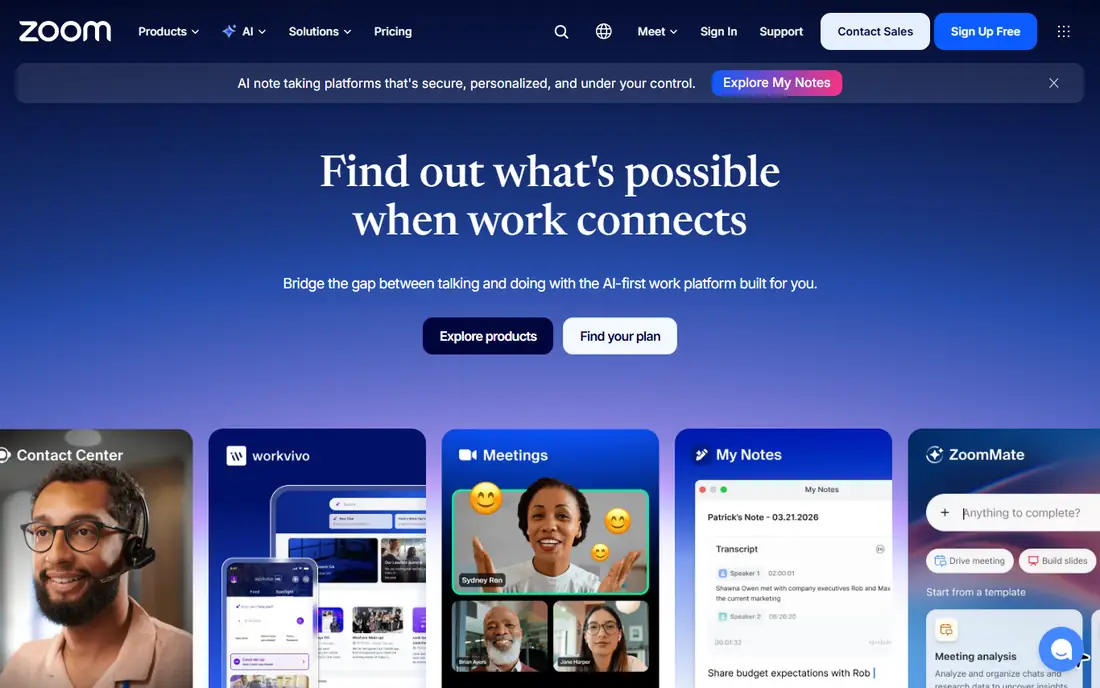
Zoom is the most widely used live video platform for virtual classes, known for reliable video, breakout rooms, polls, whiteboards, and cloud recording. Teachers can split a class into small groups, share screens, annotate together, and record sessions for students who miss class. Zoom also integrates with learning platforms like Canvas, Moodle, and Google Classroom.
The limits are plan caps and classroom depth. The free plan limits group meetings in length, and Zoom alone does not handle assignments, grading, or course structure, so schools usually pair it with a learning platform. For live teaching itself, Zoom remains the most dependable choice.
What we like- Reliable video at scale
- Breakout rooms
- Polls, whiteboard, and recording
Watch out for- Free plan limits group meetings
- Classroom management needs add ons
- Fatigue in long sessions
Starting priceSee website
Free planYes
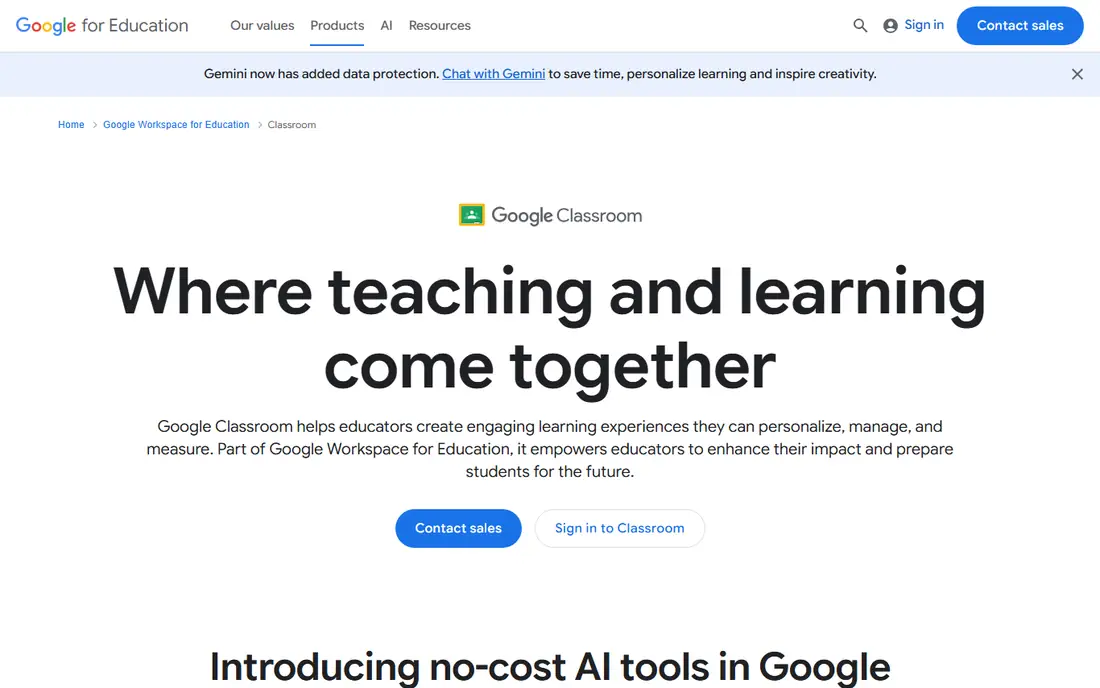
Google Classroom is free for qualifying schools through Google Workspace for Education Fundamentals, with 100 TB of pooled cloud storage shared by the organization. Teachers can post assignments, collect work, grade, and communicate with students in a simple interface that most students learn quickly. Integration with Google Docs, Drive, and Meet keeps the workflow in one place.
The limits are depth and live teaching. Google Classroom lacks the advanced grading, analytics, and course design tools of Canvas or Blackboard, and live classes run through Google Meet rather than inside Classroom itself. For K-12 schools that want a simple, free platform, Google Classroom is the best starting point.
What we like- Free for qualifying schools
- Simple for teachers and students
- Google Workspace integration
Watch out for- Limited grading depth
- Weak for higher education
- Live classes need Google Meet
Starting priceSee website
Free planNo
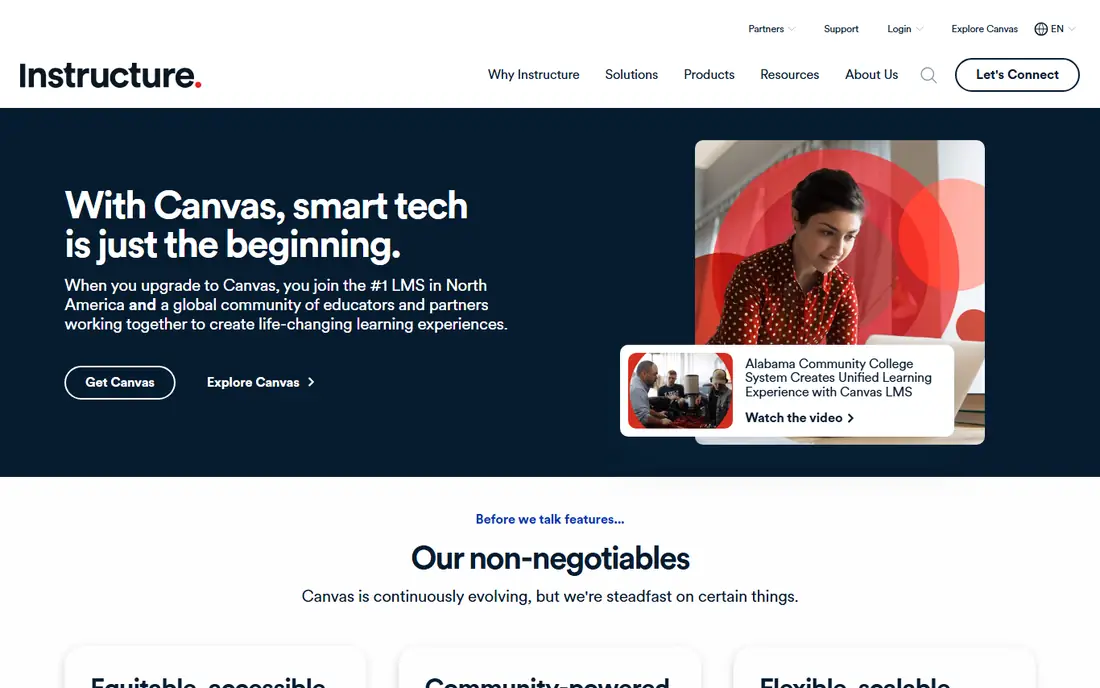
Canvas, by Instructure, is the leading learning platform for universities in the United States, known for polished course design, strong grading tools, and learning analytics. Teachers can build structured courses with modules, discussions, quizzes, and rubrics, while administrators get detailed reports on student progress. Canvas also integrates with Zoom and other video tools for live sessions.
The limits are price and setup. Canvas pricing is quote based and suits institutions better than individual teachers, and full setup takes time and training. For a university or college that needs a serious, scalable learning platform, Canvas is the top choice.
What we like- Polished course design
- Strong grading and analytics
- Large university adoption
Watch out for- Quote based pricing
- Setup takes time
- Smaller schools may find it costly
Starting priceSee website
Free planNo
Blackboard Learn, now part of Anthology, has served universities for decades and offers deep institutional features, including advanced assessment, course management, and administrative controls. Large institutions value its ability to handle tens of thousands of students, complex programs, and accreditation reporting.
The limits are interface and administration. Blackboard's interface feels dated next to Canvas, and running it well needs skilled administrators. For large institutions already invested in the Anthology ecosystem, Blackboard Learn remains a solid, proven platform.
What we like- Deep institutional features
- Strong assessment tools
- Long higher education record
Watch out for- Interface feels dated
- Quote based pricing
- Admin heavy
Starting priceSee website
Free planYes
Moodle is open source learning software that is free to download and self host, with thousands of plugins and themes for customization. It scales from one teacher to a university with 200,000 students, and its hosted plans start at 130 dollars per year for up to 50 users. Moodle handles assignments, quizzes, question banks, rubrics, blind grading, and SCORM content.
The limits are maintenance and live video. Self hosting needs a server, patches, backups, and upgrades, and live sessions require a partner integration like BigBlueButton or Zoom. For schools with technical staff and tight budgets, Moodle offers unmatched control and value.
What we like- Open source and free to self host
- Over 2,000 plugins
- Full data ownership
Watch out for- Needs technical staff
- Admin learning curve
- No built in video conferencing
#6Microsoft Teams
Best for: Schools on Microsoft 3654.4/5 on
G2 (19,330 reviews, checked Oct 2026)
Visit microsoft.com
Starting priceSee website
Free planYes
Microsoft Teams combines video meetings, chat, file sharing, and class tools in one app, and schools already using Microsoft 365 get it as part of their subscription. Teachers can run live classes, create assignments, use OneNote class notebooks, and grade work without leaving Teams. The platform also supports breakout rooms, polls, and recording.
The limits are clutter and ecosystem fit. Teams can feel busy compared with simpler tools, and it works best for schools already committed to Microsoft products. For a school or business already on Microsoft 365, Teams is the natural virtual classroom choice for most teams.
What we like- Built into Microsoft 365
- Class notebooks
- Assignments and grading
Watch out for- Can feel cluttered
- Best inside Microsoft ecosystem
- Large meetings need paid plans
Starting priceSee website
Free planNo
Adobe Connect is built for virtual training and webinars, with persistent rooms that keep layouts, content, and polls in place between sessions. Trainers can design custom room layouts with multiple pods for video, chat, whiteboards, and shared content, which suits structured corporate training better than simple video calls.
The limits are interface and learning curve. Adobe Connect feels dated next to Zoom, and designing rooms takes practice. For corporate trainers who run repeated, structured virtual sessions, its persistent rooms are a real advantage.
What we like- Persistent virtual rooms
- Rich layouts
- Strong for webinars and training
Watch out for- Dated interface
- Higher learning curve
- Pricing suits organizations
Starting priceSee website
Free planYes
BigBlueButton is open source web conferencing built for online learning, with a shared whiteboard, polling, breakout rooms, screen sharing, and recording. It integrates with Moodle, Canvas, and other learning platforms, making it a natural live classroom companion for open source schools.
The limits are hosting and scale. BigBlueButton needs a server and technical skill to run well, and scaling to very large classes needs expertise. For schools that want an open source live classroom without vendor lock in, BigBlueButton is the best fit.
What we like- Open source
- Built for teaching
- Whiteboard, polling, and breakout rooms
Watch out for- Needs hosting
- Smaller community than Moodle
- Scaling needs expertise
How we chose
We ranked tools by live teaching quality, classroom features, assignment and grading support, ease of use, and price, favoring tools with proven classroom use over generic video apps. We gave extra weight to breakout rooms, whiteboards, polling, and recording, since those features separate a classroom from a meeting. We also weighed total cost, including hosting and admin time, not only license price. Finally, we checked student experience on low bandwidth connections and on phones, since many students join classes from mobile devices or shared home internet, and a tool that only works well on a fast office connection fails the students who need it most.
Buying guide
Start by deciding whether you need live teaching, course management, or both. A business running live training may only need Zoom or Teams, while a school running full courses needs a learning platform like Canvas, Moodle, or Google Classroom, plus a video tool for live sessions. Also count your students and your budget together, since per student pricing that looks cheap for 20 learners can become very expensive at 2,000, while a self hosted platform that looks free can cost more in staff time than a paid plan.
Next, test with a real class. Invite a group of students, run a full session with breakout rooms and a whiteboard, and check video quality on weak connections. A tool that looks good in a demo can still struggle with 30 students on home internet. Also test the student side of the tool, not only the teacher view, since students deal with joining links, audio settings, and chat controls that teachers rarely see.
Finally, check accessibility and privacy. Confirm the tool supports captions, screen reader access, and student data protections required by your school or region. A classroom tool that excludes some students or mishandles their data is not a good choice at any price.
Also plan for recordings and attendance before your first class. Decide where recordings live, how long they are kept, and who can view them, since students expect to catch up on missed sessions. Check attendance tracking too, since some platforms log it automatically while others need manual work. Setting these rules early saves hours of confusion later, especially when a class spans time zones or when students join from different devices.
Frequently asked questions
What is the difference between a virtual classroom and a learning platform?
A virtual classroom hosts live sessions with video, whiteboards, and breakout rooms. A learning platform also manages courses, assignments, grading, and student progress over time. Many schools use both together.
Is Google Classroom really free?
Yes, for qualifying schools through Google Workspace for Education Fundamentals. Paid editions add more storage, security controls, and admin features for larger institutions.
Can I use Zoom alone for teaching?
Yes, for live sessions, but Zoom does not manage assignments or grading. Schools usually pair Zoom with a learning platform like Canvas, Moodle, or Google Classroom for full courses.
Is Moodle hard to set up?
Self hosted Moodle needs a server and someone to maintain it, which suits schools with technical staff. Hosted Moodle plans remove that work at a low cost, starting at 130 dollars per year for small groups.
Which tool is best for a small tutoring business?
Zoom or Microsoft Teams usually suits small tutoring best, since setup is fast and students already know the tools. Add a simple learning platform only when you need structured courses and grading.
Sources we checked (0)
Is your product missing or out of date?
We review this list regularly. Vendors can request a listing, send updated pricing or ask about featured placement.

Shihab Mia · Founder, Rankite
Shihab has 5+ years in B2B and SaaS SEO. He writes Rankite's software buying guides from pricing pages, documentation and public user reviews. More about Shihab.
 Zoom
Zoom Google Classroom
 Canvas
 Blackboard Learn
 Moodle
 Adobe Connect
 BigBlueButton