How we make this list: we compare pricing pages, product documentation and public user reviews. Ratings come from G2, Capterra or Trustpilot, with the date we checked them.
Key takeaways
- Zoom and Microsoft Teams lead on live classes, while Google Classroom leads on simple assignment workflows.
- Canvas and Moodle suit schools and universities that need a full learning management system.
- Teachable and Thinkific suit independent teachers selling courses online.
- Nearpod adds interactive lessons and formative checks inside live or self-paced classes.
Quick comparison
Is your product missing or out of date?
We review this list regularly. Vendors can request a listing, send updated pricing or ask about featured placement.
Starting priceFree
Free planYes
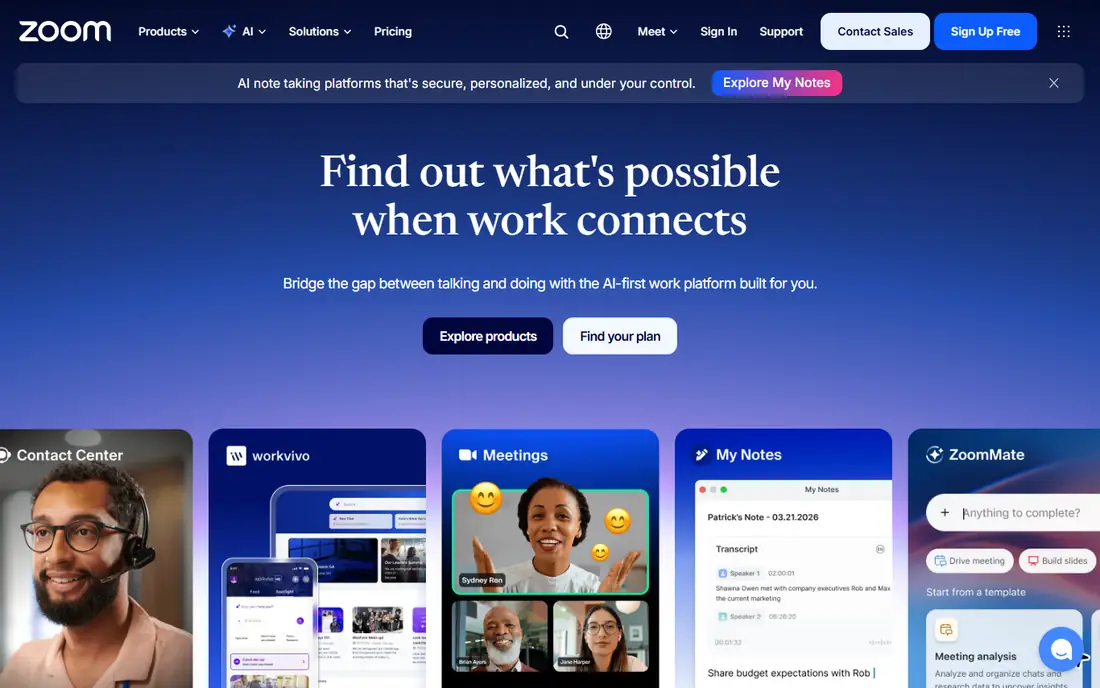
Zoom remains the default for live online classes, thanks to reliable video, breakout rooms for small-group work, and built-in polls, chat, and whiteboard. Teachers can record sessions for absent students, and the app works well on weak connections compared with heavier platforms. Most students already know Zoom, which removes setup friction on the first day of class.
The free tier caps group meetings at 40 minutes, which breaks longer classes, so schools usually need a paid plan. Engagement tools are also basic next to Nearpod or Kahoot-style tools, so teachers often pair Zoom with a second tool for quizzes and interaction. For live teaching at any scale, Zoom is still the safest choice.
What we like- Reliable video at scale
- Breakout rooms
- Polls and whiteboard
Watch out for- Free meetings cap at 40 minutes for groups
- Engagement tools are basic
Starting priceFree
Free planYes
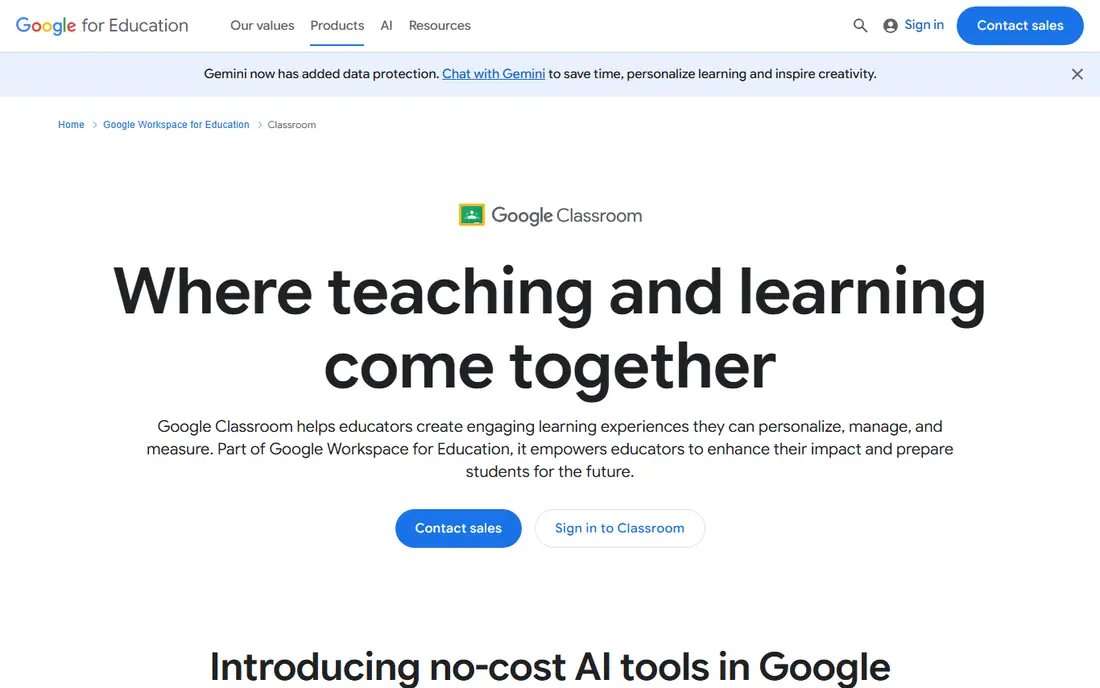
Google Classroom suits teachers who want a simple hub for assignments, materials, and grades without a complex LMS. Creating a class takes minutes, assignments flow to students with due dates, and grading happens inside Docs and Sheets. Because it is free for schools and integrates with Google Workspace, adoption costs almost nothing.
Classroom has no built-in live video, so teachers pair it with Zoom or Google Meet, and advanced LMS features such as detailed analytics and complex rubrics are thinner than Canvas. For K-12 teachers and small programs that need a clean, free workflow, Google Classroom is the easiest starting point.
What we like- Free for schools
- Simple assignments and grading
- Integrates with Google Workspace
Watch out for- No built-in live video
- Limited advanced LMS features
Starting priceSee website
Free planYes
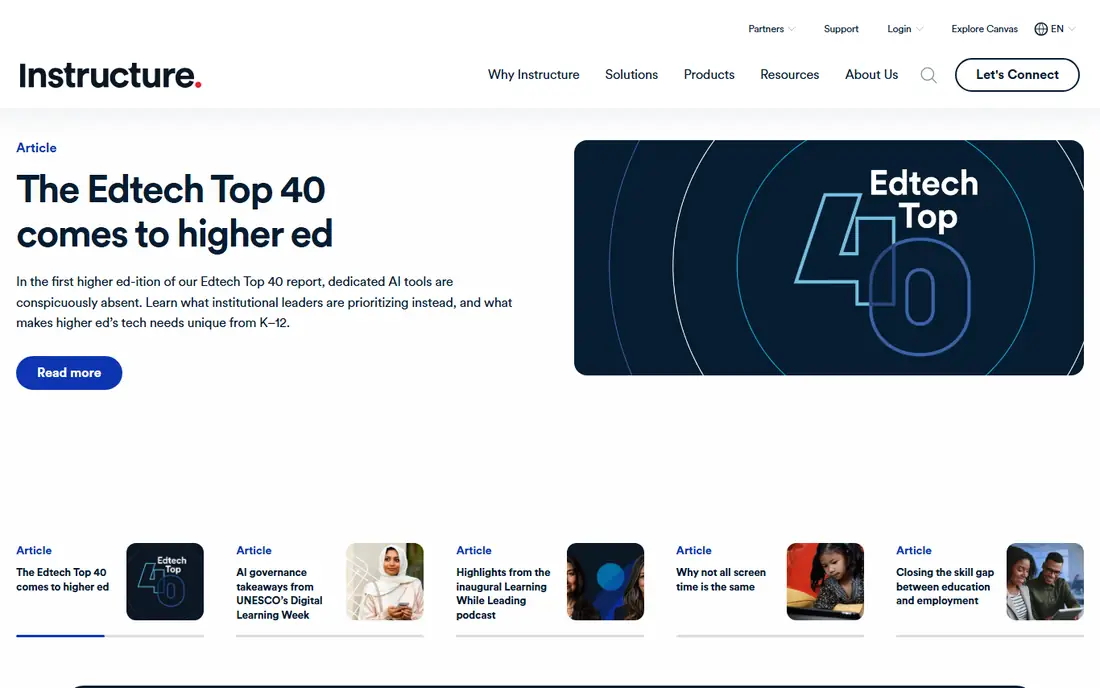
Canvas, from Instructure, is a full learning management system used by many schools, colleges, and universities. It covers courses, assignments, quizzes, grading, discussion, and analytics in one place, with a large library of integrations for plagiarism checks, video, and publishers. The student app is strong, and offline access helps learners with weak connections.
Setup and administration take real effort, and pricing is institutional rather than per-teacher, so individual teachers cannot simply buy it alone. A free teacher account covers basic use. For an institution that needs a complete, scalable LMS, Canvas is the leading commercial choice, with the widest integration library of any LMS on this list.
What we like- Complete LMS features
- Strong grading and analytics
- Large integration library
Watch out for- Setup and admin effort
- Pricing is institutional
Starting priceFree
Free planYes
Moodle is the open-source LMS that powers many schools and universities worldwide. It is free to use, highly customizable, and supported by a huge plugin library covering quizzes, badges, competencies, and more. Self-hosting gives institutions full control over data and privacy, which matters for student records.
Hosting, updates, and maintenance fall on the institution, and the interface feels dated next to Canvas. A team without technical support will struggle. For a school or university with technical capacity that wants a free, fully owned LMS, Moodle is unmatched on value and control today.
What we like- Free and open-source
- Highly customizable
- Huge plugin library
Watch out for- Hosting and maintenance fall on you
- Interface feels dated
#5Microsoft Teams
Best for: Schools on Microsoft 3654.4/5 on
G2 (19,330 reviews, checked Oct 2026)
Visit microsoft.com
Starting priceFree
Free planYes
Microsoft Teams suits schools already on Microsoft 365, combining live classes, chat, assignments, and files in one app. Class Teams organize students, assignments flow through OneNote and Forms, and meetings support large classes with breakout rooms. For a school standardized on Microsoft tools, Teams removes the need for separate video and classroom apps.
The interface can feel busy, with many channels and tabs, and the full experience needs a Microsoft 365 Education plan. A free tier covers basic use for a single teacher. For a Microsoft school, Teams is the natural all-in-one teaching platform.
What we like- Live classes plus assignments
- Built into Microsoft 365
- Strong for school-wide use
Watch out for- Interface can feel busy
- Best with a Microsoft 365 subscription
#6Teachable
Best for: Selling courses online3.8/5 on
G2 (52 reviews, checked Oct 2026)
Visit teachable.com
Starting priceSee website
Free planFree trial
Teachable helps independent teachers sell courses without building a website. Course creation is straightforward, with video, quizzes, and drip content, while built-in payments, coupons, and affiliate tools handle sales. Student management covers enrollments, progress, and certificates, which suits creators selling to a public audience.
Transaction fees apply on lower tiers, and design flexibility is limited compared with a self-hosted site, so brand-heavy creators may feel constrained. Pricing is tiered and published on the vendor site. For a teacher turning knowledge into a sellable course quickly, Teachable is the fastest path to revenue.
What we like- Easy course creation
- Built-in payments and coupons
- Good student management
Watch out for- Transaction fees on lower tiers
- Design flexibility is limited

#7Thinkific
Best for: Selling courses online4.5/5 on
G2 (416 reviews, checked Oct 2026)
Visit thinkific.com
Starting priceSee website
Free planFree trial
Thinkific is the close rival to Teachable, with a strong course builder, no transaction fees on paid plans, and community features that help students discuss and support each other. Course pages look polished, and the platform handles payments, enrollments, and certificates without extra plugins.
The free tier is limited to one course with basic features, and marketing tools such as email automation are basic compared with dedicated marketing platforms. Pricing is tiered and published on the vendor site. For a creator who wants to keep all course revenue and build a student community, Thinkific is a strong pick.
What we like- No transaction fees on paid plans
- Strong course builder
- Good community features
Watch out for- Free tier is limited
- Marketing tools are basic
Starting priceFree
Free planYes
Nearpod turns slides into interactive lessons, adding polls, quizzes, open questions, and virtual field trips inside a lesson students join from any device. Teachers can run lessons live or assign them self-paced, and formative results show who understands the material in real time. The lesson library covers many subjects and saves preparation time.
Library depth varies by subject and grade, and advanced features such as larger storage and more students per session need paid plans. A free tier covers basic use for a single teacher. For a teacher who wants students active rather than passive during online lessons, Nearpod adds the interaction that video calls alone lack, and its real-time results show misunderstandings while there is still time to correct them.
What we like- Interactive slides, polls, and quizzes
- Works live or self-paced
- Huge lesson library
Watch out for- Content library varies by subject
- Advanced features need paid plans
How we chose
We compared vendor pricing pages, product documentation, and public user reviews, and we judged each tool on live teaching, assignment workflow, grading, analytics, ease of use, and price. School LMS tools were judged on institutional needs, while course-selling tools were judged on creator needs, since the two jobs differ. We did not claim hands-on testing. Where pricing was institutional or tiered, we wrote See website rather than publish a figure that could mislead.
What to check before you pick
Start with your setting: a K-12 classroom, a university, a corporate training program, or an independent course business. Each setting points to a different tool, and buying an institutional LMS for a solo course wastes money just as surely as selling courses through a classroom tool wastes opportunity. Check student access, since a tool that needs a new account, a download, or a fast connection will lose students on day one.
Also check grading and feedback workflows, because a tool that makes grading slow will frustrate teachers daily. Check accessibility features, including captions, screen reader support, and keyboard navigation, since online teaching must serve all students. Check data privacy rules for student data in your region, and confirm whether the vendor signs data agreements schools require. Finally, run a pilot with one real class before rolling out school-wide, since a tool that looks good in a demo can fail on real timetables, real devices, and real student behavior.
One more check matters before you commit: confirm how each tool handles assessment integrity and feedback at scale, since a quiz tool that works for twenty students may struggle with two hundred, and a grading workflow that suits essays may fail for lab reports or portfolios. Ask how rubrics, peer review, and plagiarism checks work in practice, not just on a feature list, and test them with real student work. A further point matters for live teaching: test your setup under real conditions, not just on a fast office connection. Ask a few students to join from home devices and mobile data, check how breakout rooms, screen sharing, and polls behave when many students join at once, and have a backup plan for outages, such as a recorded lesson or an asynchronous assignment. Teachers who plan for the worst connection in the class, rather than the best, keep lessons running when technology falters, and that reliability matters more to students than any single feature.
Frequently asked questions
Which tool is best for live online classes?
Zoom leads on live video reliability, while Microsoft Teams suits schools already on Microsoft 365. Pair either with Nearpod or a quiz tool for interaction, since video alone rarely keeps students engaged for a full lesson.
Is Google Classroom enough for a school?
For many K-12 schools, yes, especially when paired with Meet or Zoom for live classes. Larger institutions that need detailed analytics, complex grading, and publisher integrations usually need Canvas or Moodle instead.
Can I sell courses without a website?
Yes, Teachable and Thinkific host your courses, handle payments, and manage students without a separate website. You still need to market the course yourself, since neither platform brings students automatically.
What about student privacy?
Student data privacy rules vary by region, and schools should check vendor data agreements, data location, and retention policies before adoption. Self-hosted Moodle gives the most control, while cloud tools should provide school data agreements on request.
Do these tools work on student phones?
Most do, with mobile apps for Zoom, Classroom, Canvas, Teams, and Nearpod, though small screens limit complex work such as essays and spreadsheets. Design lessons that work on phones for students without laptops, and keep file sizes small for weak connections. A short video under five minutes, a single clear task, and a low-bandwidth fallback such as a text summary will reach more students than a long live lecture alone.
Sources we checked (8)
- https://www.zoom.us
- https://classroom.google.com
- https://www.instructure.com
- https://www.moodle.org
- https://www.microsoft.com
- https://www.teachable.com
- https://www.thinkific.com
- https://www.nearpod.com
Is your product missing or out of date?
We review this list regularly. Vendors can request a listing, send updated pricing or ask about featured placement.

Shihab Mia · Founder, Rankite
Shihab has 5+ years in B2B and SaaS SEO. He writes Rankite's software buying guides from pricing pages, documentation and public user reviews. More about Shihab.
 Zoom
Zoom Google Classroom
 Canvas
 Moodle
 Nearpod