How we make this list: we compare pricing pages, product documentation and public user reviews. Ratings come from G2, Capterra or Trustpilot, with the date we checked them.
Key takeaways
- Simple joiners are best for side-by-side and stacked images, while design tools are better for collages with text and layouts.
- Browser-based joiners that process images locally keep your photos off a server, which is useful for screenshots with private details.
- PNG export suits screenshots and text, while JPG suits photos where file size matters.
- Free tiers often limit resolution, layouts, or remove watermarks only on paid plans, so test an export before a large project.
- For a quick merge, pick a no-signup joiner. For a polished social post, pick Canva, Fotor, or Adobe Express.
Quick comparison
| Tool | Best for | Starting price | Free plan |
|---|
 Canva Canva | Collages and social posts | $0 per month | Yes |
 Fotor Fotor | Photo collages and edits | $0 per month | Yes |
 Pixlr Pixlr | Merging inside an editor | $0 per month | Yes |
 Adobe Express Adobe Express | Quick merges with templates | $0 per month | Yes |
 BeFunky BeFunky | Collages with filters | $0 per month | Yes |
 PineTools PineTools | Simple no-signup merging | $0 per month | Yes |
 IMGonline IMGonline | Simple JPG and PNG merging | $0 per month | Yes |
 PhotoJoiner PhotoJoiner | Joining photos online | $0 per month | Yes |
 AIMerger Photo Joiner AIMerger Photo Joiner | Private browser merging | $0 per month | Yes |
Is your product missing or out of date?
We review this list regularly. Vendors can request a listing, send updated pricing or ask about featured placement.
#1Canva
Best for: Collages and social posts4.7/5 on
G2 (7,678 reviews, checked Oct 2026)
Visit canva.com
Starting price$0 per month
Free planYes
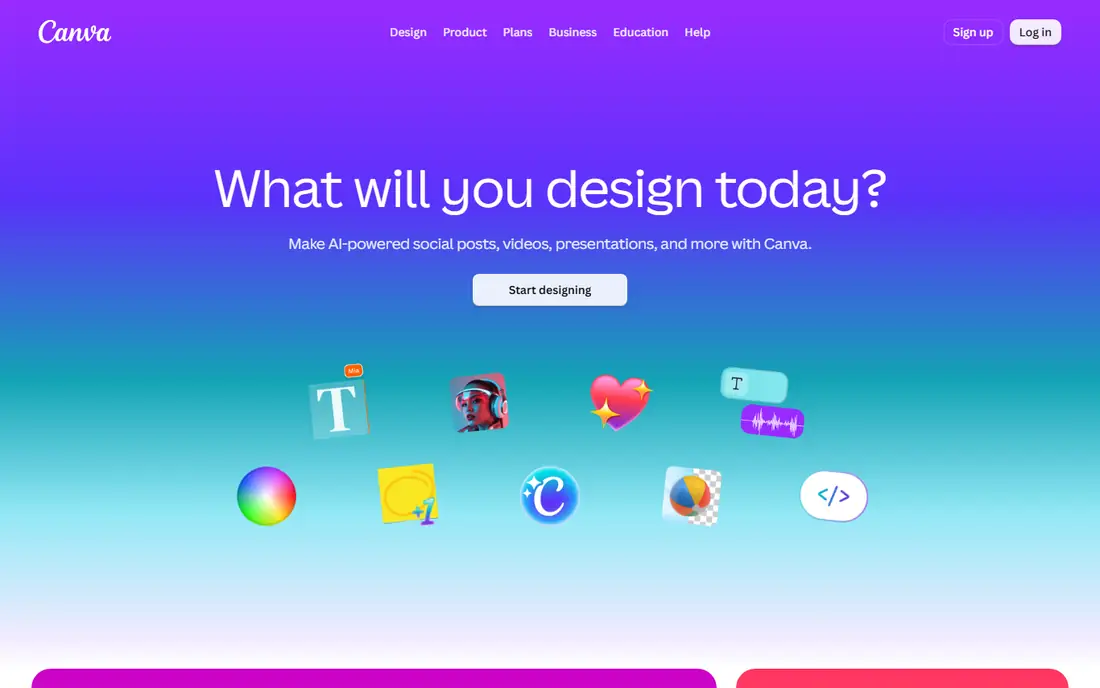
Canva is the best choice when a merged image needs to look polished. Upload photos, pick a collage layout or a blank canvas, arrange images side by side or in a grid, then add text, borders, or filters. Templates for social posts, presentations, and posters make it easy to match a format without starting from scratch.
Merging in Canva takes a few more steps than a dedicated joiner, since you place images manually rather than pressing one join button. The free tier covers most collage work, while Pro adds premium layouts, background removal, and brand tools. Canva fits creators, marketers, and students who want a finished visual, not just two images stuck together.
What we like- Many collage layouts and templates
- Text, shapes, and filters included
- Easy sharing and download
Watch out for- Some layouts and elements need Pro
- Merging is design-based, not a one-click join
#2Fotor
Best for: Photo collages and edits4.2/5 on
G2 (342 reviews, checked Oct 2026)
Visit fotor.com
Starting price$0 per month
Free planYes
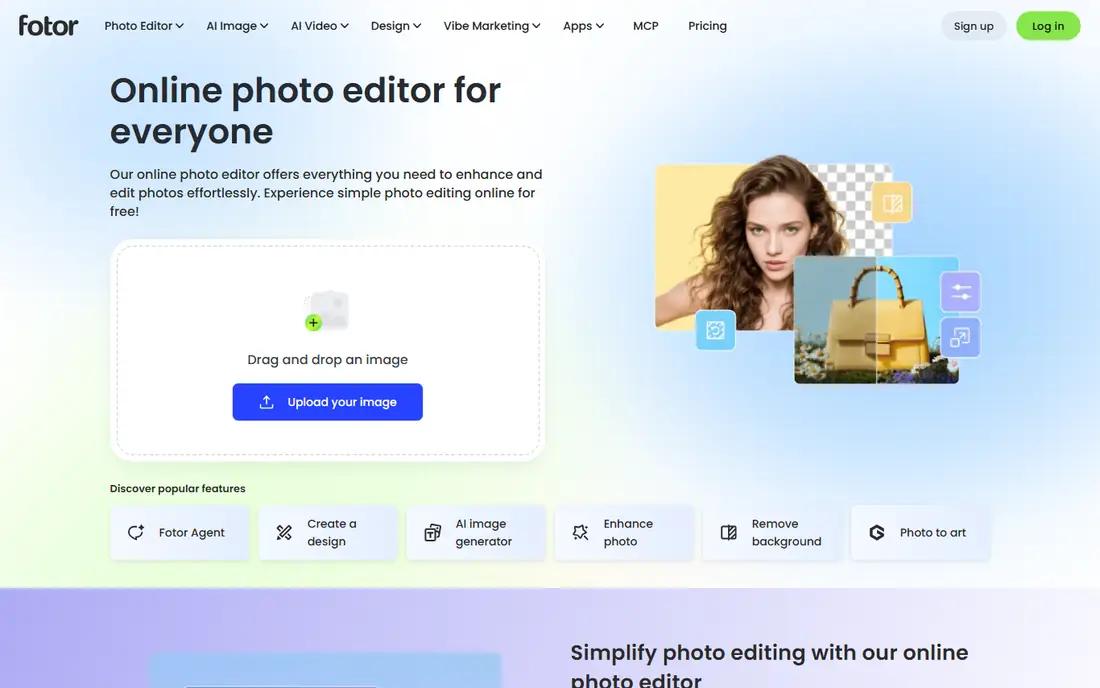
Fotor combines a collage maker with a photo editor, which makes it useful when merged photos also need brightness, contrast, or color fixes. Choose a vertical, horizontal, or grid layout, drag photos into place, adjust spacing and borders, then edit each photo without leaving the tool. That combined workflow saves switching between apps.
The free tier handles everyday collages, while Pro adds more templates and advanced editing. Free exports can be limited in resolution for larger prints, so check output size before a print project. Fotor fits users who want collages plus light editing in one free tool.
What we like- Vertical, horizontal, and grid layouts
- Built-in photo editing
- Border and spacing controls
Watch out for- Some templates and features need Pro
- Free exports may include limits on resolution
#3Pixlr
Best for: Merging inside an editor4.4/5 on
G2 (751 reviews, checked Oct 2026)
Visit pixlr.com
Starting price$0 per month
Free planYes
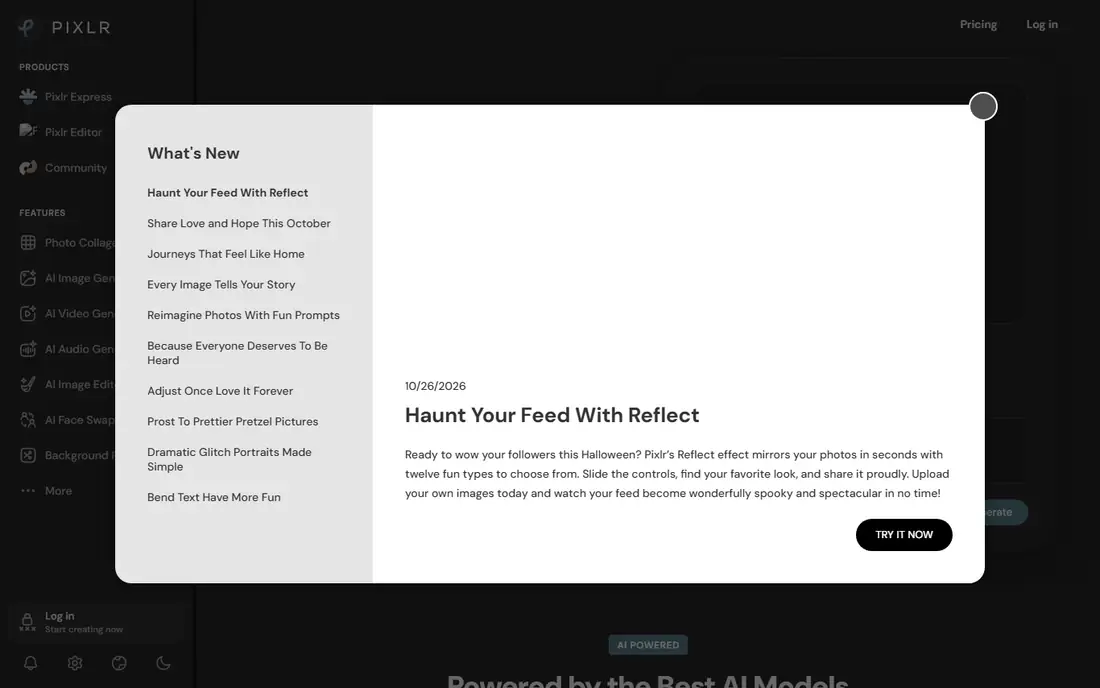
Pixlr suits users who want control beyond a preset layout. Open images as layers, place them side by side or overlapped, adjust opacity, add text, and export in common formats. That layer control helps for before-and-after images, product comparisons, and creative blends where exact placement matters.
Beginners may find the editor busy at first, since it offers far more than a joiner. The free tier covers core editing and merging, with paid plans removing ads and adding advanced tools. Pixlr fits users comfortable with an editor who want a merged image with precise sizing and blending.
What we like- Full editor for precise placement
- Layers and blending options
- Supports JPG, PNG, and WebP
Watch out for- Editor interface can overwhelm beginners
- Some features need a paid plan
#4Adobe Express
Best for: Quick merges with templates4.5/5 on
G2 (855 reviews, checked Oct 2026)
Visit adobe.com
Starting price$0 per month
Free planYes
Adobe Express offers a middle path between a simple joiner and a full editor. Templates help you build a merged image for social media, a flyer, or a presentation, and drag-and-drop tools make placement quick. Adobe fonts, icons, and stock assets add polish without hunting for outside resources.
A free Adobe account covers many tasks, while premium plans add more templates, assets, and brand tools. Merging two screenshots is possible, though a dedicated joiner is faster for that single job. Adobe Express fits users who regularly create social and marketing visuals and want merges to match a consistent style.
What we like- Templates for social and marketing use
- Simple drag-and-drop layout
- Adobe fonts and design assets
Watch out for- Some premium templates and features need a paid plan
- Account needed for full use
#5BeFunky
Best for: Collages with filters4.2/5 on
G2 (108 reviews, checked Oct 2026)
Visit befunky.com
Starting price$0 per month
Free planYes
BeFunky is a friendly collage tool for personal photos, travel albums, and social posts. Pick a layout, add photos, adjust spacing and background color, then apply filters to give the whole collage a consistent look. The interface stays simple, which helps users who do not want a full design suite.
Plus, the paid tier, adds more layouts, effects, and batch tools, while the free version includes ads and fewer premium options. For casual collages, the free tier is enough. BeFunky fits families, students, and creators who want a quick, attractive collage without learning an editor.
What we like- Easy collage maker with many layouts
- Filters and effects for photos
- Simple sharing options
Watch out for- Some layouts and effects need Plus
- Free version includes ads
Starting price$0 per month
Free planYes
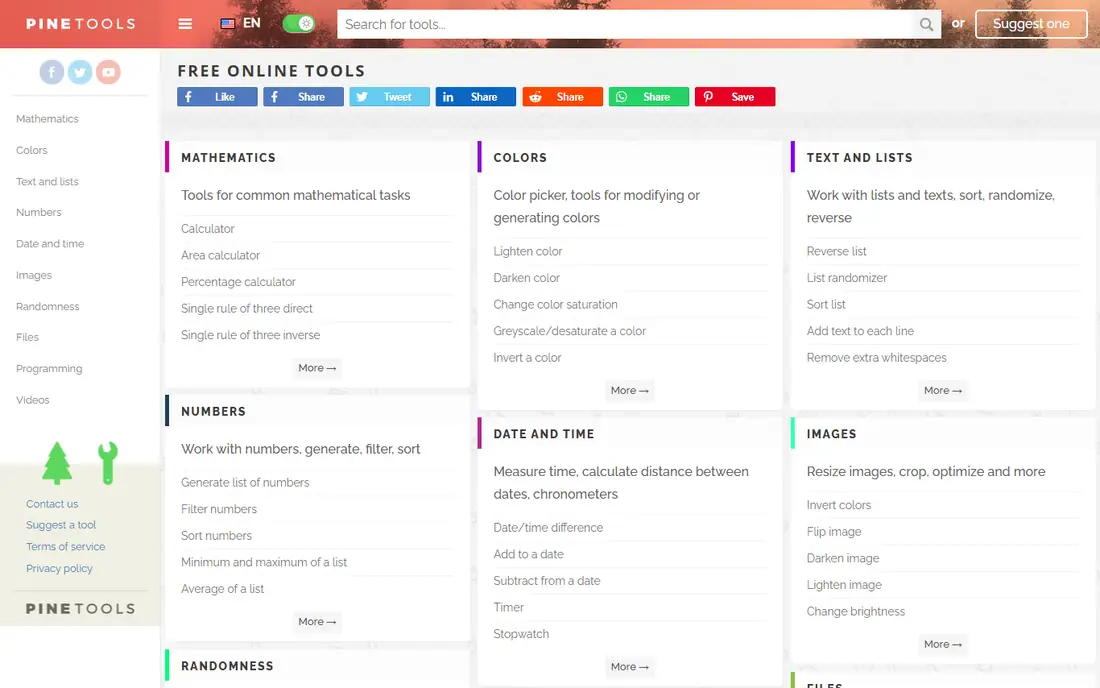
PineTools is for users who want to merge two images and leave. Upload the images, choose vertical or horizontal placement, set border size and background color if needed, and download the result. There is no account, template library, or design layer to slow the task down.
That plain approach is also the limit. PineTools will not build a styled collage, add text, or edit photos beyond basic merging. For screenshots, comparison images, and quick joins, that simplicity is an advantage. PineTools fits anyone who values speed and no signup over design features.
What we like- No signup for basic merging
- Vertical and horizontal options
- Border and background controls
Watch out for- Interface is plain and dated
- No collage templates or advanced editing
Starting price$0 per month
Free planYes
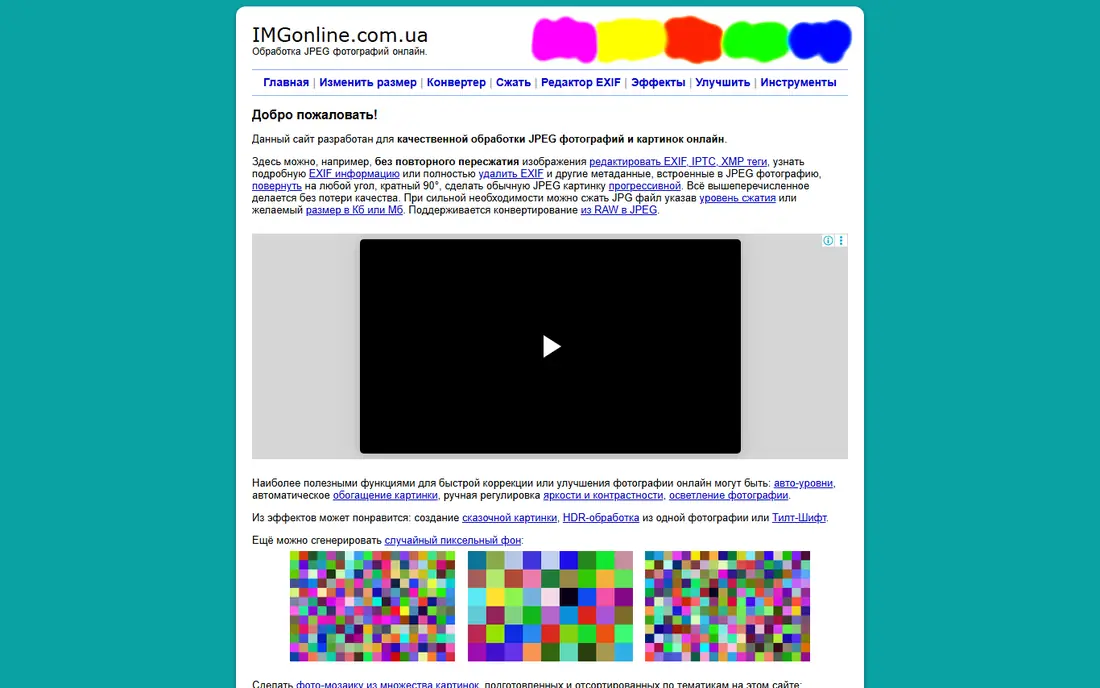
IMGonline provides a simple web tool for combining images, with options for layout and output format. It is useful when you need a quick merge without installing software or learning an editor. The site also offers other image tools, such as resizing and conversion, which can help before or after merging.
The interface is functional rather than modern, and uploads go to the server for processing, so avoid images with private or sensitive details. For ordinary photos and screenshots, IMGonline is a practical no-cost option. It fits users who want a direct joiner with minimal steps.
What we like- Straightforward merging for JPG and PNG
- No signup for basic use
- Useful for quick joins
Watch out for- Interface is basic
- Processing happens online, so avoid sensitive images
Starting price$0 per month
Free planYes
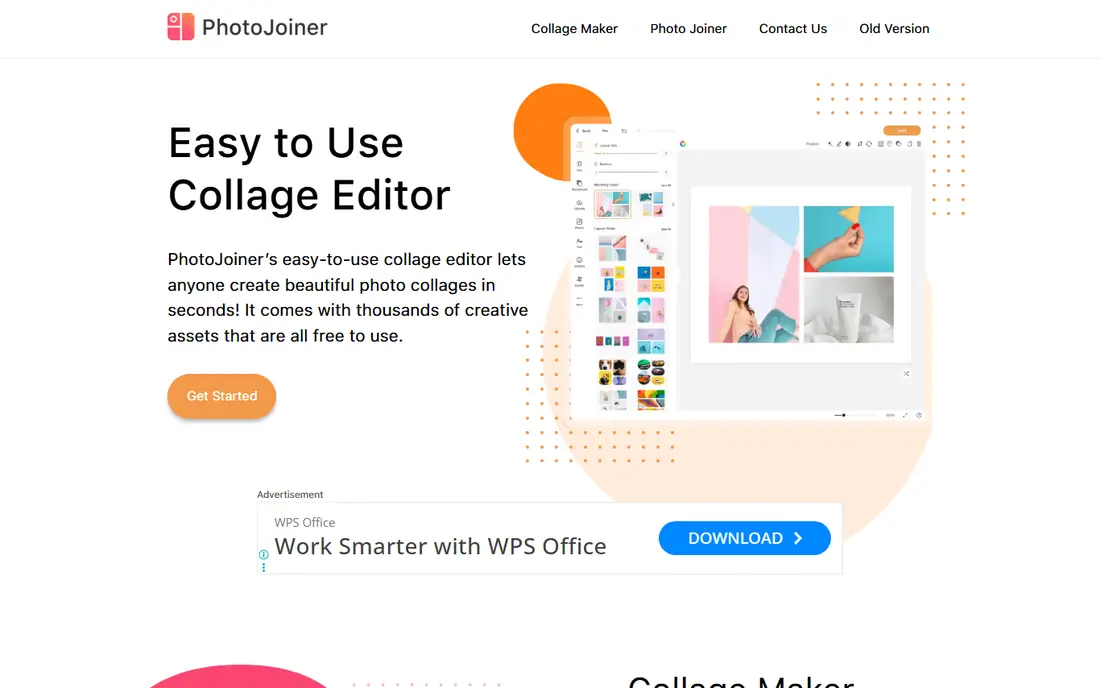
PhotoJoiner focuses on one job: putting photos together online. Upload images, choose a layout direction, adjust basic settings, and download the combined image. The lack of extra features keeps the workflow short, which is ideal for a one-off merge during a busy day.
It will not replace a design tool for styled collages, text overlays, or filters. Source image quality also matters, since a low-resolution photo will stay low-resolution in the merged result. PhotoJoiner fits users who need a fast, free join without an account or editor learning curve.
What we like- Simple joining workflow
- Vertical and horizontal layouts
- No software install needed
Watch out for- Limited editing and template options
- Output quality depends on source images
Starting price$0 per month
Free planYes
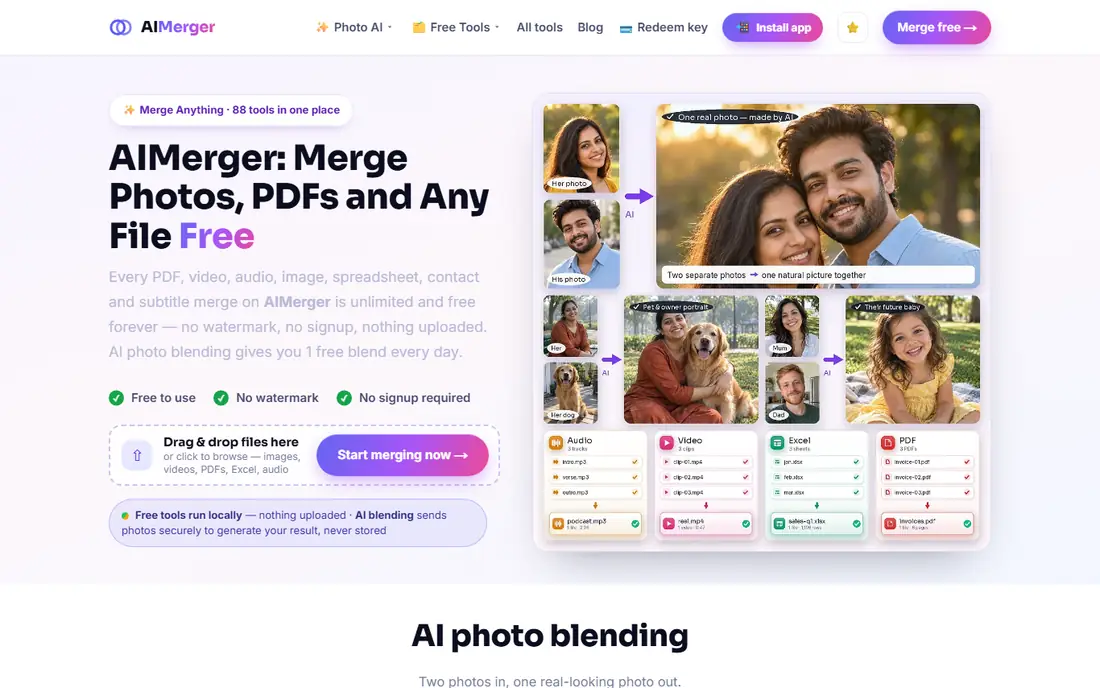
AIMerger Photo Joiner stands out for privacy. Basic joins run entirely in the browser, so images do not leave your device, and the tool states there is no watermark and no signup for basic use. You can join up to eight images side by side or stacked, choose JPG, PNG, or WebP output, and control output width.
Advanced AI merging, which blends photos into a single scene, is a separate feature with its own limits. For everyday joins, the basic tool is fast and private. AIMerger fits users merging screenshots, product photos, or personal images who prefer not to upload files to a server.
What we like- Runs in the browser with no upload for basic joins
- No watermark on basic joins
- Side-by-side and stacked options
Watch out for- Newer tool with a smaller feature set than Canva
- Advanced AI merging may have daily limits
How we chose
We reviewed vendor sites and product documentation, and we compared free-tier limits, layout options, export formats, signup requirements, and whether processing happens in the browser or on a server. We favored tools that are genuinely free for basic merging, still available in 2026, and distinct in purpose, from simple joiners to design collage makers. Where a price could not be confirmed on the vendor site, we listed See website, though all tools here offer a free tier for basic merging.
Choosing by merge type
The best tool depends on what kind of merged image you need. A side-by-side comparison, a long stacked screenshot, and a styled social collage are different jobs, and picking the wrong tool adds unnecessary steps.
Side-by-side and stacked joins
Use PineTools, PhotoJoiner, IMGonline, or AIMerger for simple joins. Upload in order, choose horizontal for comparisons or vertical for screenshots and chat threads, and export as PNG for text-heavy images. Check that both images share a similar width or height before merging, since mismatched sizes can leave uneven borders.
Collages and social posts
Use Canva, Fotor, BeFunky, or Adobe Express when the result needs text, filters, or a branded layout. Start from a template sized for your platform, keep text short, and export at the highest free resolution available. For print, test a small print first, since screen resolution can hide softness that appears on paper.
Frequently asked questions
How do I merge two images online for free?
Upload both images to a free joiner, choose side-by-side or stacked layout, and download the result as JPG or PNG. Tools such as PineTools, PhotoJoiner, and AIMerger do this without a paid plan. For a styled collage, use Canva or Fotor instead.
Can I merge images without losing quality?
You can preserve quality by exporting as PNG for screenshots and text, and by avoiding repeated JPG compression. Start with the highest-resolution source images you have, and do not upscale a small image to a large canvas. Some free tools limit export resolution, so check the output size before final use.
Do free image mergers add watermarks?
Some do, especially on premium templates or advanced features, while simple joiners such as PineTools and AIMerger state no watermark for basic joins. Always preview the downloaded file before sharing, since watermark rules can differ by template and export type.
Can I merge more than two images?
Yes. Most collage tools support many images in grid layouts, and AIMerger supports up to eight images in a basic join. For longer series, join images in batches, then join the results. Keep an eye on file size, since many high-resolution photos can create a large final image.
Is it safe to upload photos to an online merger?
For ordinary photos, yes, but avoid uploading sensitive screenshots, IDs, or private documents to server-based tools. Browser-based tools such as AIMerger process basic joins locally, which keeps files on your device. Read the privacy policy if you merge personal or work images regularly.
What is the difference between merging and stitching images?
Merging places separate images side by side, stacked, or in a grid as one file. Stitching blends overlapping photos into a panorama by matching edges and content. For panoramas, use a stitching or panorama tool rather than a simple joiner, since a joiner will show a visible seam.
Sources we checked (9)
- https://www.canva.com
- https://www.fotor.com
- https://www.pixlr.com
- https://www.adobe.com/express
- https://www.befunky.com
- https://www.pinetools.com
- https://www.imgonline.com.ua
- https://www.photojoiner.net
- https://www.aimerger.com
Is your product missing or out of date?
We review this list regularly. Vendors can request a listing, send updated pricing or ask about featured placement.

Shihab Mia · Founder, Rankite
Shihab has 5+ years in B2B and SaaS SEO. He writes Rankite's software buying guides from pricing pages, documentation and public user reviews. More about Shihab.