How we make this list: we compare pricing pages, product documentation and public user reviews. Ratings come from G2, Capterra or Trustpilot, with the date we checked them.
Key takeaways
- The best authenticator app is the one you can recover after losing a phone, not just the one with the simplest code screen.
- Google and Microsoft Authenticators suit mainstream users, while 2FAS and Ente Auth suit privacy-focused users who want more control.
- Authy offers encrypted multi-device backup, but its desktop app was removed, so mobile is now the main route.
- 1Password and Bitwarden suit people who already use a password manager and want codes next to logins.
- Before switching apps, export or back up tokens and save recovery codes for every important account.
Quick comparison
| Tool | Best for | Starting price | Free plan |
|---|
 Google Authenticator Google Authenticator | Simple mainstream two-factor codes | Free | Yes |
 Microsoft Authenticator Microsoft Authenticator | Microsoft and work accounts | Free | Yes |
 Authy Authy | Encrypted multi-device backup | Free | Yes |
 1Password 1Password | Passwords and codes in one vault | See website | No |
 Bitwarden Bitwarden | Open source vault with codes | See website | Yes |
 2FAS 2FAS | Free open source app with browser extension | Free | Yes |
 Ente Auth Ente Auth | Encrypted sync across all platforms | Free | Yes |
Is your product missing or out of date?
We review this list regularly. Vendors can request a listing, send updated pricing or ask about featured placement.
The best authenticator apps
#1
Google Authenticator
Best for: Simple mainstream two-factor codes
Visit google.com
Starting priceFree
Free planYes
Google Authenticator remains the simplest starting point for two-factor authentication. It generates time-based one-time passwords that work offline, so a code is available even without mobile signal. Setup is a QR scan for most sites, and the app supports a long list of services that use the standard TOTP format. For a first-time user, that lack of clutter is a strength, because there is little to learn before the first code is used.
The trade-off is recovery and organization. Google Account sync can restore codes to a new phone, but a user who loses both phone and Google Account access faces a harder recovery path. The app also offers fewer sorting, tagging and export options than privacy-focused rivals. Google Authenticator fits a mainstream user who wants a free, familiar app and who keeps Google Account recovery options up to date. It fits less well for a power user with dozens of tokens who wants detailed backup control.
What we like- Free and widely supported
- Works offline for time-based codes
- Optional Google Account sync for backup
Watch out for- Fewer organization features than rivals
- Recovery depends on Google Account access
- No desktop app
Starting priceFree
Free planYes
Microsoft Authenticator is the natural choice for anyone deep in Microsoft services. It supports passwordless sign-in for personal Microsoft accounts and push approvals for work and school accounts, alongside standard TOTP codes for other sites. Backup and restore run through a Microsoft account, so a new phone can pull back personal account codes after sign-in. That combination of work and personal use in one app is convenient for employees and students.
The limits are tied to that same ecosystem. Backup depends on the Microsoft account, so a locked Microsoft account complicates recovery. There is no desktop version, so codes stay on mobile devices. Users with many personal accounts and several work accounts may also find the list harder to scan than in a simpler app. Microsoft Authenticator fits best for Microsoft 365, Outlook and Azure users, and it works well as a general authenticator too, provided the backup account is kept secure.
What we like- Passwordless sign-in for Microsoft accounts
- Cloud backup through a Microsoft account
- Supports standard TOTP accounts as well
Watch out for- Backup is tied to a Microsoft account
- No desktop version
- Interface can feel crowded with work and personal accounts mixed
Starting priceFree
Free planYes
Authy solved the lost-phone problem earlier than most rivals, and that remains its main appeal. Codes are backed up in encrypted form and can be restored on a new device, which removes the need to re-enroll every account after a phone change. The app works offline for code generation, so travel and poor signal do not block logins. Its guides also help new users understand two-factor setup for popular sites, which lowers the barrier for a first authenticator.
Authy has narrowed since its peak. The desktop app was removed in 2024, so users who relied on a computer for codes now need a mobile device. An account requires a phone number, which privacy-focused users may dislike, and the code is not open source. Authy still fits a user who values easy recovery across phones above open source purity, and who is comfortable with a Twilio account tied to a phone number.
What we like- Encrypted cloud backup
- Multi-device support on mobile
- Offline code generation
Watch out for- Requires a phone number for an account
- Desktop app was removed in 2024
- Closed source code
Starting priceSee website
Free planNo
1Password is a password manager first, and its authenticator feature follows that logic. One-time passwords can be stored alongside the matching login, so signing in can fill both the password and the code from the same vault entry. Vaults sync across Windows, macOS, Linux, iOS, Android and browsers, which gives desktop users a code source that mobile-only apps lack. Families and teams can share vault items with controlled access, which helps households and small workplaces.
The cost and the concentration risk are the honest catches. 1Password requires a paid plan, so it is not a free authenticator replacement. Keeping a password and its second factor in the same vault also weakens the separation that two-factor authentication is meant to provide, although 1Password argues that a strong master password and a secret key offset that risk. 1Password fits a user who already pays for a password manager and wants the fastest login flow. It fits less well for someone who wants a free, separate second factor.
What we like- Codes sit next to logins in one vault
- Vault sync across desktop, mobile and browser
- Strong sharing and family or team features
Watch out for- Paid subscription required
- Putting passwords and codes in one place raises the stakes if the vault is breached
- Less suited as a standalone free authenticator
#5Bitwarden
Best for: Open source vault with codes4.6/5 on
G2 (1,475 reviews, checked Oct 2026)
Visit bitwarden.com
Starting priceSee website
Free planYes
Bitwarden gives users two routes to codes. The standalone Bitwarden Authenticator app is free and stores codes on the device, while the main Bitwarden password manager can also generate codes for vault items on a paid plan. The platform is open source with end-to-end encryption, and users who want full control can self-host the main vault server. That transparency appeals to security-minded users who want to inspect code and audit claims rather than trust marketing alone.
The split between free and paid features can confuse new users. A free vault user who expects integrated codes may find that feature needs a premium plan, while the standalone app covers the need for free. The interface also prioritizes function over polish, with more menus than a simple authenticator. Bitwarden fits a user who values open source, wants a vault and an authenticator from the same provider, and is willing to spend a few extra minutes on setup.
What we like- Open source code and end-to-end encrypted vault
- Standalone authenticator app is free
- Self-hosting option for the main vault
Watch out for- Integrated TOTP in the main vault requires a paid plan
- Interface is more functional than polished
- Setup takes more steps than Google Authenticator
#6
2FAS
Best for: Free open source app with browser extension
Visit 2fas.com
Starting priceFree
Free planYes

2FAS has become a favorite among users who want a free, private authenticator without giving up convenience. The Auth app is free, open source and ad-free, with no account required for basic use. Tokens stay on the device by default, and optional encrypted backups can use iCloud or Google Drive. Browser extensions for Chrome, Firefox, Edge, Safari, Brave and Opera bring codes to a desktop browser, which fills the gap left by mobile-only rivals.
The product split needs care. 2FAS Auth handles codes, while 2FAS Pass is a separate password product with its own free tier and premium sync. A user who wants multi-device sync for codes should check whether the Auth backup route or a Pass feature fits the need, rather than assuming one purchase covers both. 2FAS fits a privacy-minded user who wants a free app, browser access and no mandatory account, and who is comfortable managing backups.
What we like- Free with no ads
- Open source
- Browser extensions for desktop use
- Encrypted cloud backup options through iCloud or Google Drive
Watch out for- Mobile-first design with desktop only through a browser extension
- Paid sync features sit in a separate Pass product
- Smaller support team than Google or Microsoft
#7
Ente Auth
Best for: Encrypted sync across all platforms
Visit ente.io
Starting priceFree
Free planYes
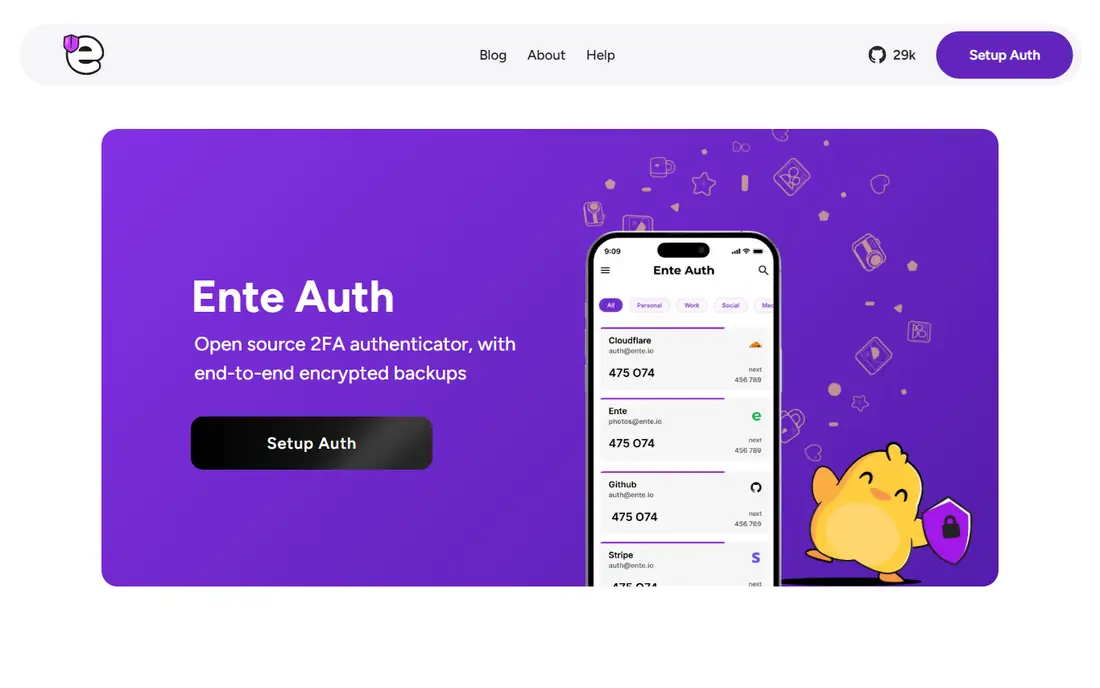
Ente Auth combines the privacy strengths of 2FAS with the cross-platform reach of a password manager. Codes sync across mobile, desktop and web with end-to-end encryption, so a new device can restore tokens after sign-in without exposing them to Ente in readable form. The app is open source, supports offline use without an account, and offers import from other authenticators plus export for moving away. Tags, pins, search and next-code preview help users with long token lists.
The main limit is storage. Ente Auth is free to start, but cloud backup storage beyond the free allowance sits on paid storage tiers shared with Ente Photos, so a user with many accounts should check the current limits. The brand is also smaller than Google or Microsoft, which may matter for a user who wants a household name behind a security app. Ente Auth fits a user who wants encrypted sync on every platform, open source code and a clean exit path if they later switch apps.
What we like- End-to-end encrypted cloud backups
- Apps for mobile, desktop and web
- Open source with import and export tools
Watch out for- Free storage limits may push heavy users to a paid plan
- Smaller brand than Google or Microsoft
- Sharing features add complexity for solo users
How we chose
We compared apps on code standards, backup and recovery, sync, offline use, platform coverage, privacy, open source status, import and export, and price. Pricing came from vendor sites and product pages, because most authenticators are free and the paid differences sit in password manager bundles or storage tiers. Where a price could not be tied to a current vendor page, we wrote See website. We checked that each app supports standard TOTP codes and is available today, rather than listing discontinued apps or hardware-only tools.
How to choose an authenticator app without getting locked out
Start with recovery, not with the code screen. Ask what happens if your phone is lost, stolen or reset. An app with encrypted cloud backup, a tested export, or a clear restore flow beats an app with a nicer interface but no recovery path. Save the recovery codes that each website offers when you turn on two-factor authentication, and store them somewhere separate from your phone, such as a printed copy in a safe place or a second password vault.
Match the app to your devices
If you use only a phone, almost any app on this list works. If you work on a desktop, Ente Auth and 1Password give a fuller desktop route, while 2FAS covers desktop through a browser extension. Microsoft and Google Authenticators stay mobile-only, which is fine for most users but limiting for someone who wants codes on a computer. Check that the app supports your phone system, because some strong Android-only or iOS-only apps were left out of this list for that reason.
Keep passwords and codes separate when it matters most
A password manager that also generates codes is convenient, but it puts both factors in one place. For everyday accounts, that trade-off is reasonable for many users. For email, banking and password manager accounts themselves, a separate authenticator app adds a layer of separation. One practical setup is a separate app for the most sensitive accounts and a manager-integrated code for lower-risk logins. Also consider a hardware security key or passkey for the highest-value accounts, because authenticator codes can still be phished even when they are generated correctly.
Plan a switch before you need one
When moving apps, add the new app alongside the old one for each account where the site allows more than one authenticator, or use the old app until the new one is confirmed working. Do not delete the old app until every important account has been checked. Export tokens where the app allows it, and keep a note of which accounts use SMS, email codes or app codes, because a switch only covers the app-based accounts.
Frequently asked questions
Which authenticator app is best overall?
For most users, Google Authenticator or Microsoft Authenticator is the simplest safe choice, because both are free, widely supported and easy to recover through a Google or Microsoft account. For privacy and cross-platform sync, Ente Auth and 2FAS are stronger picks. The best app is the one whose backup method you understand and have already tested.
What is the best authenticator app for iPhone and Android?
Google Authenticator, Microsoft Authenticator, Authy, 2FAS and Ente Auth all support iPhone and Android, so the choice comes down to backup and privacy preferences. Ente Auth and 2FAS give more control over backups, while Google and Microsoft give the simplest account-based recovery. Check that the app you pick supports the same backup route on both systems if you switch phones often.
Is Authy still a good authenticator app?
Authy remains a good choice for encrypted multi-device backup on mobile, and it is free. Its main change is the removal of the desktop app in 2024, so desktop users need a different app or a browser-based route. Authy also requires a phone number, which some users prefer to avoid. If mobile backup is the priority and a phone number account is acceptable, Authy still works well.
Do authenticator apps work without internet?
Yes, time-based codes are generated on the device from a stored secret and the current time, so they work without mobile signal or Wi-Fi. Internet is needed for initial setup, cloud backup and restore, and for push-based approvals in some work apps. A code app is therefore a reliable option for travel, provided the phone clock is correct.
What happens if I lose my phone with my authenticator app?
Use the backup or restore flow for your app, such as a Google or Microsoft account restore, an encrypted cloud backup, or an exported vault. If no backup exists, use the recovery codes saved when two-factor authentication was set up, or contact each service for account recovery. That process can take time, which is why saving recovery codes before a loss matters more than choosing a perfect app.
Are authenticator apps safer than SMS codes?
Yes, in most cases. App codes are not sent over mobile networks, so they avoid SIM swap and SMS interception risks that affect text codes. App codes can still be phished if a user enters a code on a fake site, so passkeys and hardware security keys offer stronger protection for the most sensitive accounts. For most accounts, an app code is a large step up from SMS.
Sources we checked (7)
- https://www.google.com/
- https://www.microsoft.com/
- https://authy.com/
- https://1password.com/
- https://bitwarden.com/
- https://2fas.com/
- https://ente.io/auth
Is your product missing or out of date?
We review this list regularly. Vendors can request a listing, send updated pricing or ask about featured placement.

Shihab Mia · Founder, Rankite
Shihab has 5+ years in B2B and SaaS SEO. He writes Rankite's software buying guides from pricing pages, documentation and public user reviews. More about Shihab.