How we make this list: we compare pricing pages, product documentation and public user reviews. Ratings come from G2, Capterra or Trustpilot, with the date we checked them.
Key takeaways
- No tool recovers detail that was never captured. The best results come from mild to moderate blur, not from a photo that was badly out of focus.
- LetsEnhance is the strongest web choice for general deblurring, while Topaz Photo AI suits photographers who want local control and batch work.
- Faces need a specialist: Remini and similar face tools rebuild facial detail better than a general sharpener, but they can also invent features.
- Free plans are useful for a few images, but credit limits, watermarks, and resolution caps push regular users to a paid plan quickly.
- Always keep the original file, compare at full size, and check eyes, teeth, hands, and text before publishing an enhanced image.
Quick comparison
| Tool | Best for | Starting price | Free plan |
|---|
 LetsEnhance LetsEnhance | Web deblurring with different models for different photo types | $9 per user/month | Yes |
 Topaz Photo AI Topaz Photo AI | Photographers who want desktop control over denoise, sharpen, and upscale | See website | No |
 Remini Remini | Old family photos and mobile face restoration | $6.99 per user/month | Yes |
 VanceAI VanceAI | Casual users who want many photo tools in one web account | See website | Yes |
 Cutout.pro Cutout.pro | Free web deblurring plus background and portrait tools | See website | Yes |
 Upscayl Upscayl | Free, private, offline upscaling and sharpening | See website | Yes |
 HitPaw FotorPea HitPaw FotorPea | One click desktop enhancement with batch support | See website | Yes |
 Adobe Lightroom Adobe Lightroom | Photographers who already manage photos in Lightroom | See website | Free trial |
 Pixelcut Pixelcut | Sellers who need clean, sharp product photos fast | See website | Yes |
Is your product missing or out of date?
We review this list regularly. Vendors can request a listing, send updated pricing or ask about featured placement.
#1LetsEnhance
Best for: Web deblurring with different models for different photo types4.1/5 on
Trustpilot (174 reviews, checked Oct 2026)
Visit letsenhance.io
Starting price$9 per user/month
Free planYes
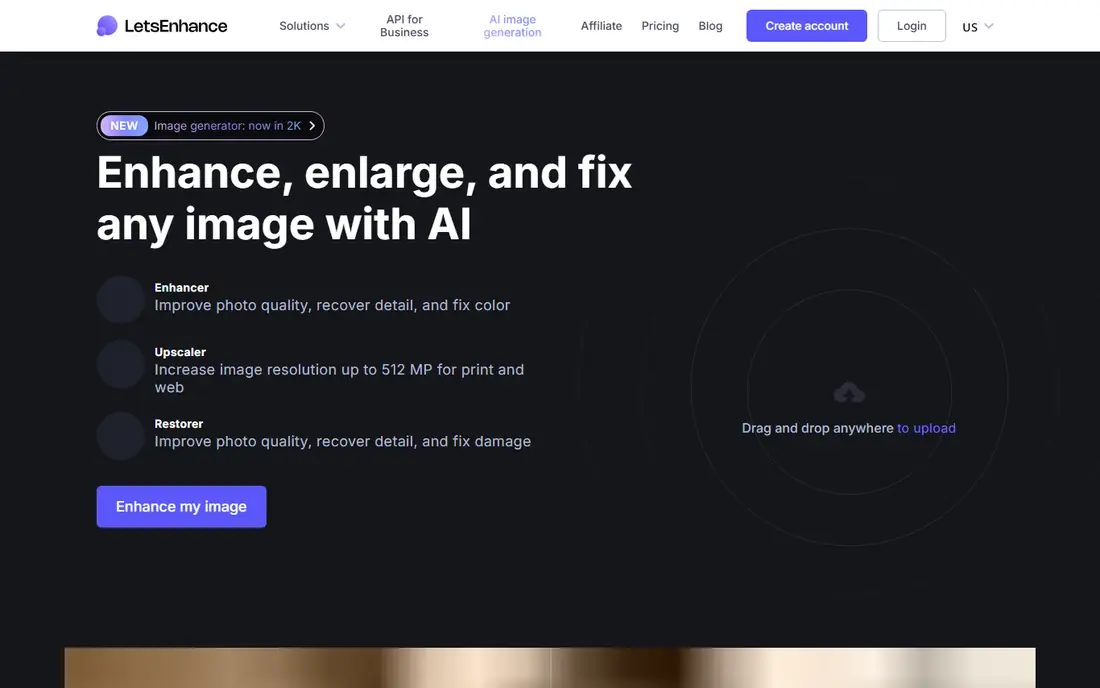
LetsEnhance is the easiest starting point for most people with a blurry photo. Upload the image, choose a model suited to the content, and let the tool rebuild sharpness and detail. Its Strong model is the one to try first for blur, while its Prime model tends to give more natural results for portraits. That choice of models matters, because a single general algorithm often over sharpens one photo type while underperforming on another.
The limits are practical. LetsEnhance processes the whole image, so you cannot sharpen only a face and leave the background soft. Credits also shape real use: the free allowance is 10 credits on sign up in past listings, and paid plans start at $9 per month. For a handful of photos, that is enough. For a catalog or a large archive, count credits per image and check batch limits before committing to a plan.
What we like- Several specialized models, including a strong model for blurry photos
- Batch processing for up to 20 images
- Browser based, so no install is needed
Watch out for- No selective or masked sharpening, since the whole image is processed
- No offline mode
- Paid plans run on credits
#2Topaz Photo AI
Best for: Photographers who want desktop control over denoise, sharpen, and upscale4.3/5 on
G2 (2 reviews, checked Oct 2026)
Visit topazlabs.com
Starting priceSee website
Free planNo
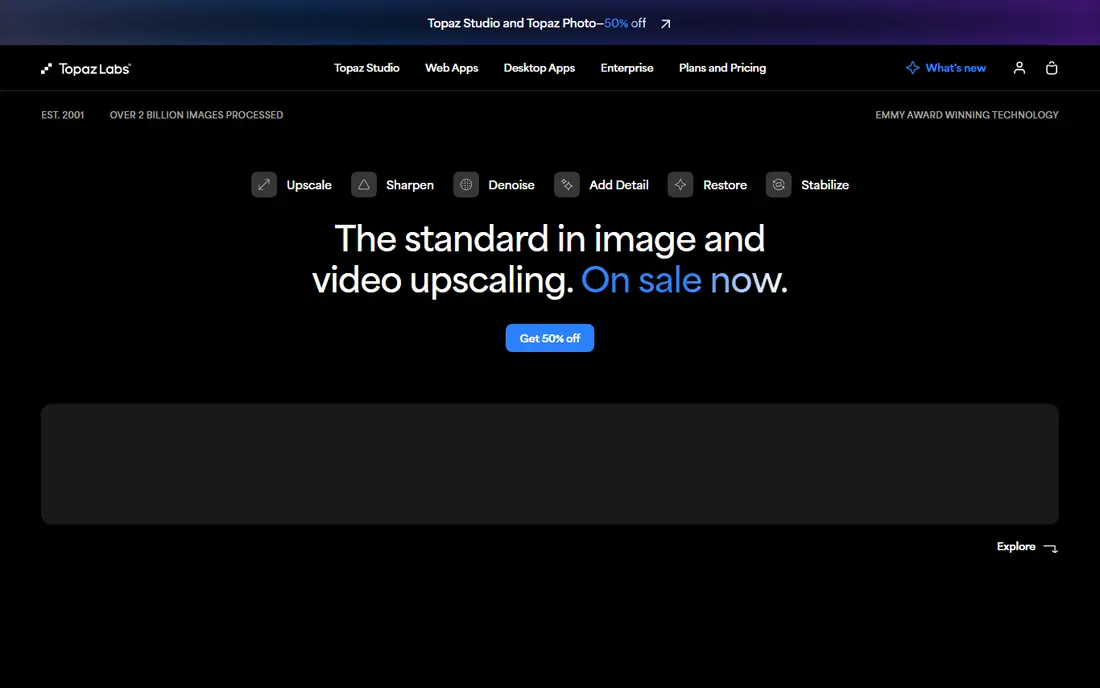
Topaz Photo AI is the quality pick for photographers, with a clear trade-off in price and learning time. It runs on your computer, which helps with privacy and with large RAW files, and it gives separate controls for noise, blur, and resolution. That control lets a photographer rescue a slightly soft shot without pushing the whole image into an artificial look.
The catch is that defaults can be too strong, especially on portraits. Skin can look plastic if sharpening and denoise are both pushed high, so dial settings back and compare at full size. Pricing has also shifted between one time licenses and subscriptions in different periods, so check the current Topaz pricing page before budgeting. For regular photography work, the cost is easier to justify than for occasional single photo fixes, where a web tool may be cheaper.
What we like- Local processing keeps files on your machine
- Separate sharpen, denoise, and upscale models
- Works standalone or as a plugin for Lightroom
Watch out for- Pricing has changed over time, so verify the current subscription or license terms
- Can over process skin if settings are left at defaults
#3Remini
Best for: Old family photos and mobile face restoration4.6/5 on
G2 (13 reviews, checked Oct 2026)
Visit remini.ai
Starting price$6.99 per user/month
Free planYes
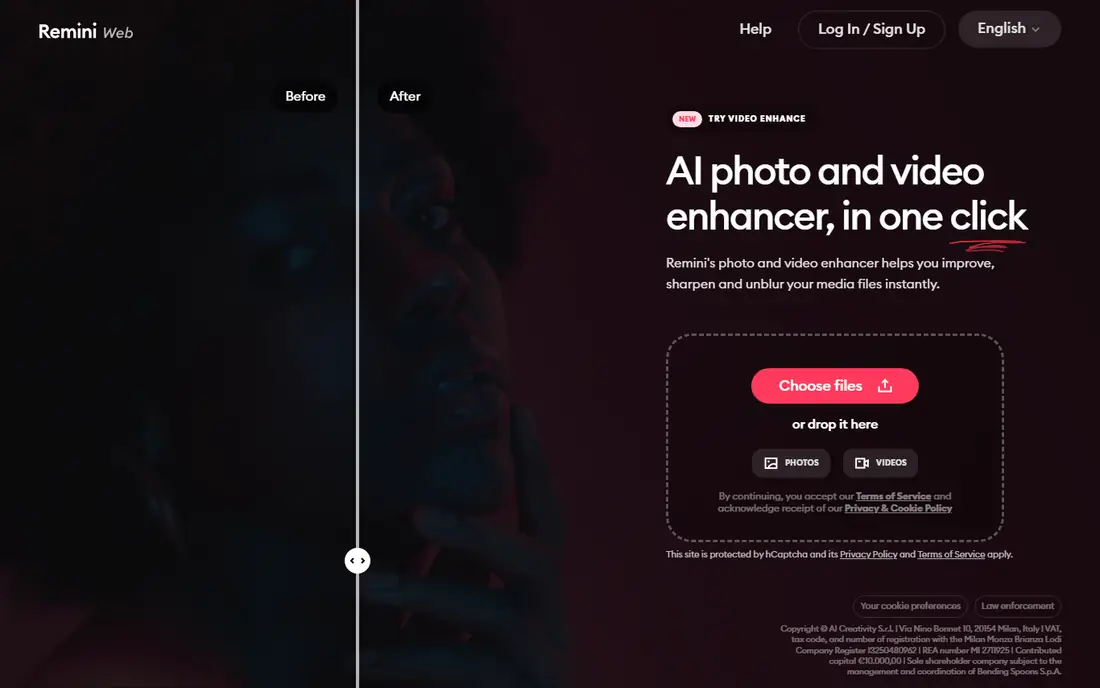
Remini became popular for a reason: it makes old, blurry faces look presentable with almost no effort. Upload a faded family photo, tap enhance, and eyes, hair, and skin gain definition that a manual sharpening filter would not recover. For casual users who mainly want to rescue portraits, that simplicity beats a full photo editor.
The limits show up outside portraits. Outdoor scenes, documents, and product photos do not get the same benefit, and the AI can invent facial details that were not in the original, which matters for historical photos. Pricing in past listings starts around $6.99 per week, with monthly and yearly options also offered, so check the current plan in the app before subscribing. Use Remini for faces, keep the original, and treat any rebuilt feature as an interpretation, not as a recovered fact.
What we like- Very simple mobile workflow
- Strong face detail recovery on old and low quality portraits
- Quick one tap enhancement
Watch out for- Weekly pricing adds up over a year
- Weaker on outdoor scenes, text, and non face subjects
- Free tier is limited and watermarked in some cases
#4
VanceAI
Best for: Casual users who want many photo tools in one web account
Visit vanceai.com
Starting priceSee website
Free planYes
VanceAI suits a user who does not want to learn a full editor, but who needs more than a single tap app. Its deblur and sharpening tools handle everyday photos, screenshots, and AI art reasonably well, and credit packs let occasional users pay without a monthly subscription. That flexibility is useful for someone who enhances photos in bursts, such as before a listing update or a family event.
Quality is the honest compromise. On fine textures such as hair, grass, and fabric, VanceAI can smooth detail rather than rebuild it, and the result can look clean at thumbnail size but soft at full size. Past listings quote credits from about $4.95 per 100 credits, but plan terms change, so verify current credit pricing on the VanceAI site. Test it on your hardest photo first, not your easiest, before buying a large credit pack.
What we like- Broad set of enhancers, including deblur, denoise, and upscaling
- Web and desktop options
- Credit packs for occasional use
Watch out for- Results can look smoothed or unnatural on fine texture
- Credit pricing makes per image cost harder to predict at first
#5
Cutout.pro
Best for: Free web deblurring plus background and portrait tools
Visit cutout.pro
Starting priceSee website
Free planYes
Cutout.pro is a good free first test for a blurry photo, especially if the same image also needs background work. The web workflow is simple, and the free tier lets a user judge whether AI enhancement helps at all before paying. For sellers and social creators who need quick, presentable images, that combination of enhancement and background tools in one place saves time.
The free tier is not a production plan. Expect limits on resolution, monthly volume, or export quality, and check current terms on the Cutout.pro site. Quality also depends on the source: portraits and product shots tend to fare better than busy outdoor scenes or heavily compressed screenshots. If the free result holds up at full size, a paid plan may be worthwhile. If it only looks good as a thumbnail, a stronger tool such as LetsEnhance or Topaz is the better next step.
What we like- Free tier for trying enhancement
- Combines photo enhancement with background removal and portrait tools
- No install needed
Watch out for- Free tier limits resolution and volume
- Quality varies by image type, with portraits stronger than complex scenes
#6
Upscayl
Best for: Free, private, offline upscaling and sharpening
Visit upscayl.org
Starting priceSee website
Free planYes
Upscayl is the privacy and budget pick in this list. It is free, open source, and runs on your own computer, so there is no credit meter, no upload to a vendor server, and no subscription to cancel. For users with many images, or with sensitive photos they do not want to upload, that alone can decide the choice.
The cost is hardware and patience. Upscayl runs best with a decent graphics card, and processing can be slow on older machines. Model selection also matters: different models suit photos, art, and digital images differently, and beginners may need a few test runs to find the right one. If you have a capable computer and time to experiment, Upscayl can match paid web tools on many photos. If you need instant results on a phone, a web tool will feel easier.
What we like- Free and open source
- Runs locally, so photos stay on your device
- Good for batch work without a subscription
Watch out for- Needs a reasonably capable computer and GPU for fast results
- Interface and model choice require more learning than a one tap app
#7
HitPaw FotorPea
Best for: One click desktop enhancement with batch support
Visit hitpaw.com
Starting priceSee website
Free planYes
HitPaw FotorPea, formerly known as HitPaw Photo Enhancer, is built for users who want a result without sliders. Open a photo, let the tool detect blur, noise, or low resolution, and export a cleaner version. Batch processing helps when a whole folder needs the same treatment, such as a set of product photos or a scanned album.
Automation is also the weakness. A tool that guesses the problem can guess wrong, especially on mixed photos where only part of the image is blurry. Check the result at full size, and be ready to try a different model or a manual tool for the images that matter most. HitPaw offers a free tier with limits, and paid plans add higher quality and batch features, so verify current pricing on its site and test with your own photos before buying.
What we like- Automatic enhancement that detects common photo problems
- Batch processing for multiple images
- Face restoration mode for portraits
Watch out for- Automatic settings can over process some photos
- Paid features and export limits vary by plan, so check terms before buying
#8Adobe Lightroom
Best for: Photographers who already manage photos in Lightroom4.6/5 on
G2 (3,299 reviews, checked Oct 2026)
Visit adobe.com
Starting priceSee website
Free planFree trial
Adobe Lightroom is not a dedicated deblur tool, but it belongs here because many photographers already own it. Its Enhance and sharpening tools can clean up mild blur and noise, and its batch workflow makes it easy to apply the same treatment to hundreds of photos. Non destructive editing is another advantage: the original stays untouched, and every adjustment can be revised later.
The limit is recovery power. Lightroom will not rebuild a badly blurred face or a heavily compressed screenshot the way a specialist AI tool might attempt to. Its Super Resolution is also capped in ways that matter for very small sources. Buy Lightroom for photography workflow, cataloging, and editing as a whole. If deblurring is the only job, a cheaper specialist tool will usually give a better result for less money.
What we like- Batch workflow and catalog management
- Enhance features including denoise and Super Resolution
- Non destructive editing keeps originals safe
Watch out for- Deblurring is limited compared with specialist AI tools
- Subscription cost is hard to justify for deblurring alone
#9
Pixelcut
Best for: Sellers who need clean, sharp product photos fast
Visit pixelcut.ai
Starting priceSee website
Free planYes
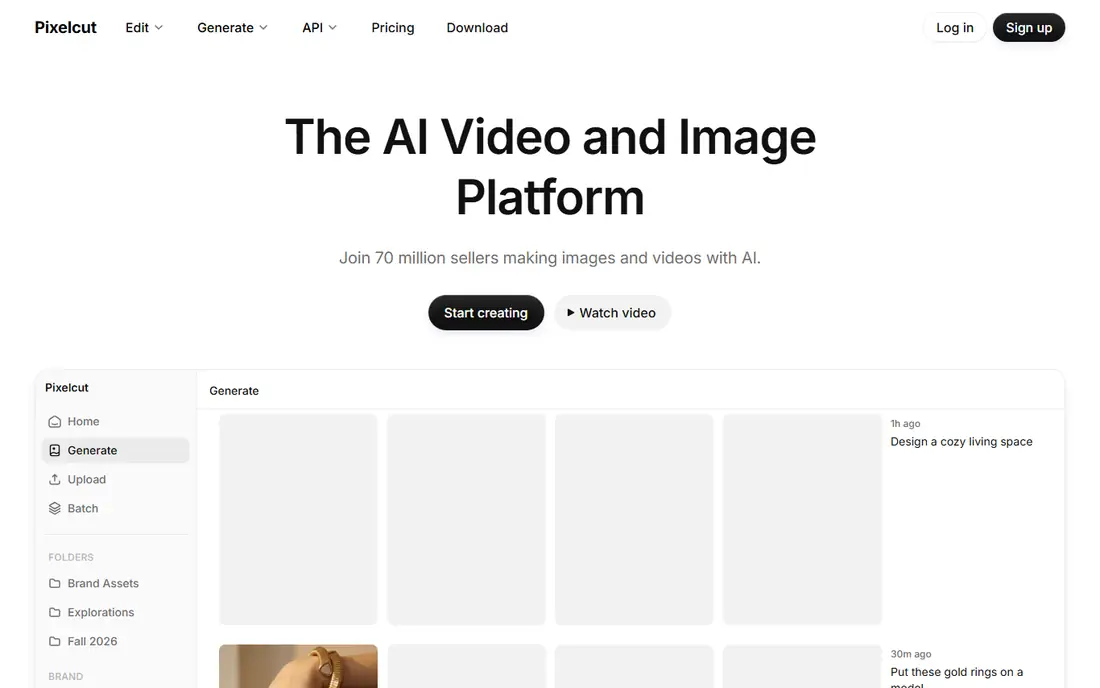
Pixelcut rounds out this list as a seller focused tool. Its enhancer sharpens product photos, cleans backgrounds, and prepares images for marketplaces such as Amazon, Etsy, and Shopify in one workflow. For a seller who photographs dozens of items a week, that end to end listing focus matters more than the absolute sharpest single image.
General photo work is where Pixelcut falls behind. Portraits, outdoor scenes, and scanned documents are not its strength, and a general tool such as LetsEnhance or Topaz will usually do better there. Pixelcut offers a free tier with limits, and paid plans add higher resolution and commercial features. Test it with your actual product photos, including fabric, reflective items, and small text on packaging, since those are the cases where a product enhancer either earns its keep or creates artifacts.
What we like- Product focused enhancer with background and listing tools
- Fast mobile and web workflow
- Useful for marketplace photos
Watch out for- Less versatile for portraits, outdoor scenes, and documents
- Quality and pricing vary by plan, so check current terms
How we chose
We compared vendor pricing pages, product documentation, and public reviews on G2, Capterra, and Reddit, focusing on deblur specific performance rather than general upscaling claims. We weighed face restoration, text legibility, batch work, privacy, and pricing units, since a free web tool and a desktop photographer tool solve different problems even when both claim to sharpen. No hands-on photo test is claimed here. The shortlist reflects documented features and the recurring strengths and complaints found across independent reviews.
Start with the type of blur and the type of photo. Motion blur, out of focus blur, and compression blur respond differently, and a tool that excels on portraits may fail on text. Naming the photo type first prevents buying a tool that is strong in the wrong area.
Test the same three photos everywhere
Use a portrait, a product photo with text, and an outdoor or street scene. Run all three through any shortlisted tool and compare at full size, not as thumbnails. A tool that passes all three is a safer purchase than one that only rescues portraits. Save the originals separately, so a disappointing enhancement never overwrites the only copy.
Watch for invented detail
AI deblurring does not only sharpen what is there. On severe blur, it can invent hair strands, fabric texture, eyes, and text strokes that look plausible but were not in the original. That matters for journalism, legal photos, product listings, and historical images. If accuracy matters more than appearance, prefer a conservative tool such as Topaz or Upscayl, use lower strength settings, and disclose enhancement where the context requires it.
Count credits and resolution, not just monthly price
A low monthly price can still be expensive if each image costs several credits, or if exports are capped at a resolution too low for print. Check credits per image, batch limits, maximum output size, and watermark rules before subscribing. For a large archive, a desktop tool with no per image meter often beats a web tool, even if the upfront price looks higher.
Frequently asked questions
Can AI really deblur a photo?
AI can improve mild to moderate blur by rebuilding plausible detail and sharpening edges, but it cannot recover information that was never captured. Severely out of focus or motion blurred photos usually improve only partly, and the result may include invented detail.
Which tool is best for blurry faces?
Remini is a strong mobile choice for faces and old photos, while LetsEnhance Prime and Topaz Photo AI give more control for portraits. Always check eyes and teeth at full size, since face tools are the most likely to invent features.
Are free AI deblur tools any good?
Yes, for occasional use. Cutout.pro and Upscayl offer useful free options, with Upscayl being free and offline. Free tiers usually limit resolution, volume, or exports, so regular users often need a paid plan.
Will deblurring work on screenshots and text?
It can help with mild compression blur, but text is fragile. AI may sharpen letters unevenly or invent strokes, making small text harder to read. For documents, try a text focused enhancer, compare the result letter by letter, and keep the original screenshot.
Should I upscale and deblur in the same step?
Many tools combine both, which is convenient, but separating the steps can give more control. Deblur first at the original size, check the result, then upscale only if the print or display size requires it. Upscaling a bad deblur usually magnifies its artifacts.
Is it safe to upload personal photos to a web deblur tool?
Check the vendor privacy policy for storage, retention, and model training terms before uploading sensitive photos. For private or sensitive images, prefer a local tool such as Topaz Photo AI or Upscayl, which keeps files on your device.
Sources we checked (9)
- https://www.letsenhance.io
- https://www.topazlabs.com
- https://www.remini.ai
- https://www.vanceai.com
- https://www.cutout.pro
- https://www.upscayl.org
- https://www.hitpaw.com
- https://www.adobe.com
- https://www.pixelcut.ai
Is your product missing or out of date?
We review this list regularly. Vendors can request a listing, send updated pricing or ask about featured placement.

Shihab Mia · Founder, Rankite
Shihab has 5+ years in B2B and SaaS SEO. He writes Rankite's software buying guides from pricing pages, documentation and public user reviews. More about Shihab.