How we make this list: we compare pricing pages, product documentation and public user reviews. Ratings come from G2, Capterra or Trustpilot, with the date we checked them.
What is ScreenFlow and why look for an alternative
ScreenFlow is a Mac-only screen recorder and video editor from Telestream. It records your screen, camera and microphone together, then lets you edit the result on a multi-track timeline with animations, callouts and clean exports. Course creators, YouTubers and trainers on Mac have used it for years because it combines capture and editing in one polished app. New licences start at $199 as a one-time purchase, with paid upgrades for new versions.
People look for an alternative for a few clear reasons. ScreenFlow only runs on Mac, so anyone on Windows or a mixed team needs another tool. The one-time price is fair, but upgrades cost extra, and the total spend adds up over several versions. Some creators want cloud sharing and async video instead of local files, or live streaming alongside recording. Others need a free recorder for occasional use and cannot justify $199 for a few videos a year. The eight tools below cover every one of those gaps.
How do you pick the right ScreenFlow alternative
Start with your platform. If you are on a Mac and want the closest match, Camtasia is the direct rival. If you are on Windows, ScreenFlow was never an option, so OBS Studio, Camtasia or Loom is the realistic shortlist. Next, decide how much editing you need. A full editor such as Camtasia or DaVinci Resolve suits polished courses, while a light recorder such as Loom or ScreenPal suits quick walkthroughs and feedback videos.
Check the sharing model. ScreenFlow exports local files you upload yourself. Loom, ScreenPal and Screencastify share by link and host the video for you, which is faster for team feedback. Finally, check the free tier honestly. OBS Studio is free forever, while Loom and ScreenPal free plans cap recording length and video count. Match the tool to how often you record, not to the feature list.
The 8 best ScreenFlow alternatives at a glance
| Tool |
Best for |
Starting price |
Free plan |
| Camtasia |
Polished tutorial courses with built-in editing |
From $179.88 per year |
Free trial |
| OBS Studio |
Free recording and streaming on any platform |
Free |
Yes |
| Loom |
Fast screen and webcam videos shared by link |
From $18 per user per month |
Yes, limited |
| Snagit |
Quick captures and short how-to clips |
From $39 per year |
Free trial |
| CapCut |
Short-form social video with screen clips |
Free; Pro $19.99 per month |
Yes |
| ScreenPal |
Affordable all-in-one recording, editing and hosting |
$4 per month billed annually |
Yes, limited |
| Screencastify |
Browser-based recording for classrooms and quick demos |
$7 per user per month billed annually |
Yes, limited |
| DaVinci Resolve |
Full editing depth for recorded footage |
Free; Studio $295 one-time |
Yes |
Quick comparison
| Tool | Best for | Starting price | Free plan |
|---|
 Camtasia | Polished tutorial courses with built-in editing | From $179.88 per year for Essentials | Free trial with watermarked exports |
 OBS Studio | Free recording and streaming on any platform | Free | Yes, fully free and open source |
 Loom | Fast screen and webcam videos shared by link | From $18 per user per month billed annually for Business | Yes, limited to 25 videos and 5-minute recordings at 720p |
 Snagit | Quick captures and short how-to clips | From $39 per year for Snagit Individual | Free trial only |
 CapCut | Short-form social video with screen clips | Free; CapCut Pro $19.99 per month or $179.99 per year | Yes, free tier with watermark-free 1080p export |
 ScreenPal | Affordable all-in-one recording, editing and hosting | $4 per month billed annually for Solo Deluxe | Yes, 15-minute recordings and 10 hosted videos with basic editing |
 Screencastify | Browser-based recording for classrooms and quick demos | $7 per user per month billed annually | Yes, limited free videos and recording length |
 DaVinci Resolve | Full editing depth for recorded footage | Free; DaVinci Resolve Studio $295 one-time | Yes, the free edition exports 4K with no watermark |
Is your product missing or out of date?
We review this list regularly. Vendors can request a listing, send updated pricing or ask about featured placement.
The 8 best ScreenFlow alternatives
Each tool below records the screen, edits the result, or both, and covers the core job ScreenFlow does, with its own strengths and trade-offs.
#1Camtasia
Best for: Polished tutorial courses with built-in editing4.6/5 on
G2 (1,769 reviews, checked Oct 2026)
Visit techsmith.com
Starting priceFrom $179.88 per year for Essentials
Free planFree trial with watermarked exports
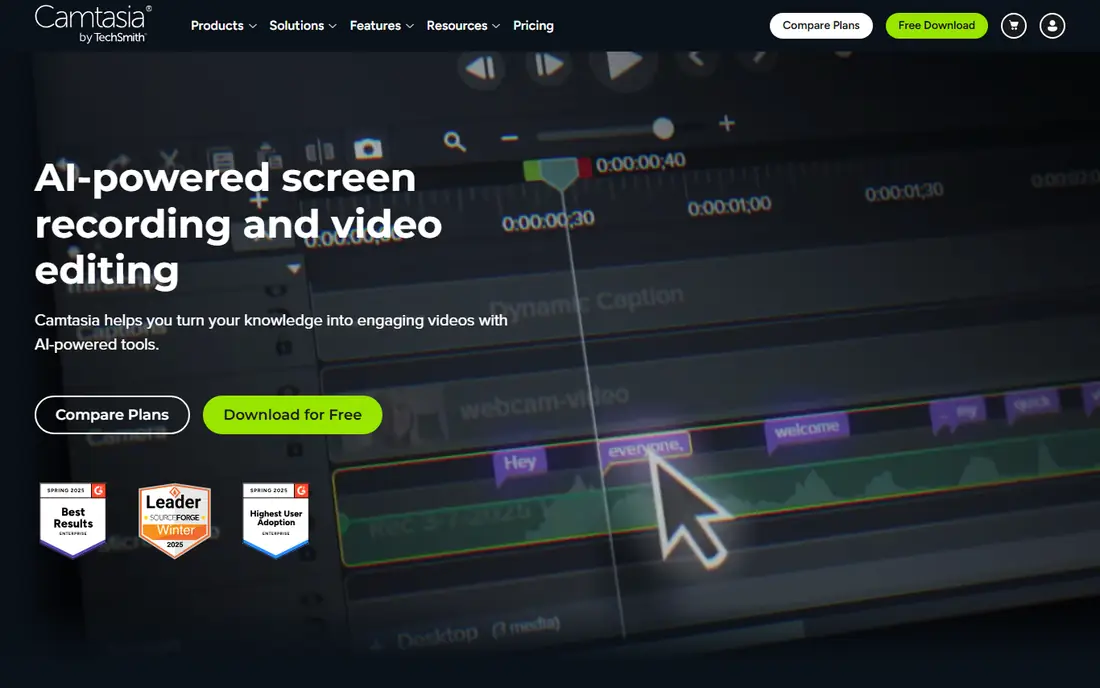
Camtasia is the closest direct rival to ScreenFlow. It records screen, camera and audio, then edits on a multi-track timeline with animations, callouts, transitions and captions. For course creators it goes further than ScreenFlow, with interactive quizzes and SCORM export for learning management systems. It runs on Windows and Mac, so it suits mixed teams and anyone who might switch platforms. Essentials costs $179.88 per year, with higher tiers for more features, and there is a legacy one-time licence option in some regions. The trade is cost and weight. Camtasia is a full editor, so it is slower to open and heavier on resources than a quick recorder, and the subscription keeps charging every year while ScreenFlow one-time licence does not. For professional training content, Camtasia is the strongest ScreenFlow replacement.
What we like- Full multi-track editor, animations and callouts, quizzes and SCORM export for courses, runs on Windows and Mac
Watch out for- Yearly subscription cost, heavier than a light recorder, no free plan beyond the trial
#2OBS Studio
Best for: Free recording and streaming on any platform4.6/5 on
G2 (138 reviews, checked Oct 2026)
Visit obsproject.com
Starting priceFree
Free planYes, fully free and open source
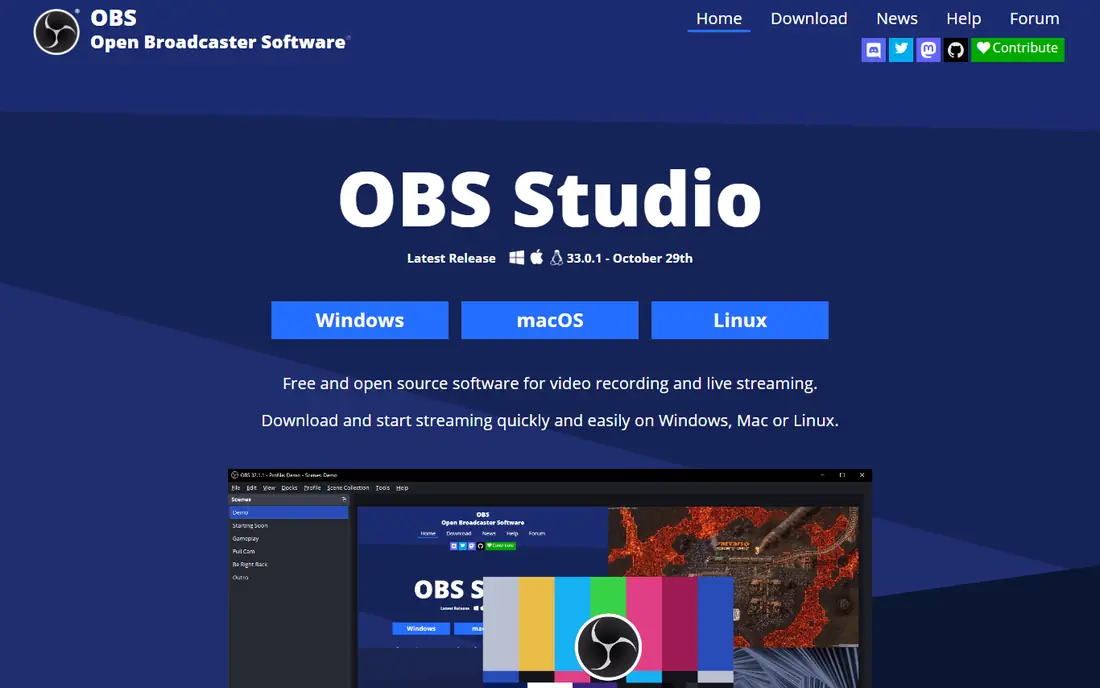
OBS Studio is free, open source, and the most capable free recorder available. It captures screen, camera, windows and audio sources, mixes them live with scenes, and records or streams to YouTube, Twitch and other platforms. There is no watermark, no time limit and no account. The plugin ecosystem adds virtual cameras, noise suppression, and advanced audio routing. The catch is that OBS Studio is a recorder, not an editor. You will pair it with another tool such as DaVinci Resolve or CapCut for cutting and polish, which adds a step ScreenFlow users do not have. Setup also takes longer: scenes, sources and audio routing need configuring before the first recording. For creators who want a free recorder and already have an editor, OBS Studio is unbeatable.
What we like- Completely free with no watermark, records and live streams, huge plugin ecosystem, runs on Windows, Mac and Linux
Watch out for- No built-in video editor, steeper setup, interface is built for streamers first
#3Loom
Best for: Fast screen and webcam videos shared by link4.7/5 on
G2 (2,415 reviews, checked Oct 2026)
Visit loom.com
Starting priceFrom $18 per user per month billed annually for Business
Free planYes, limited to 25 videos and 5-minute recordings at 720p
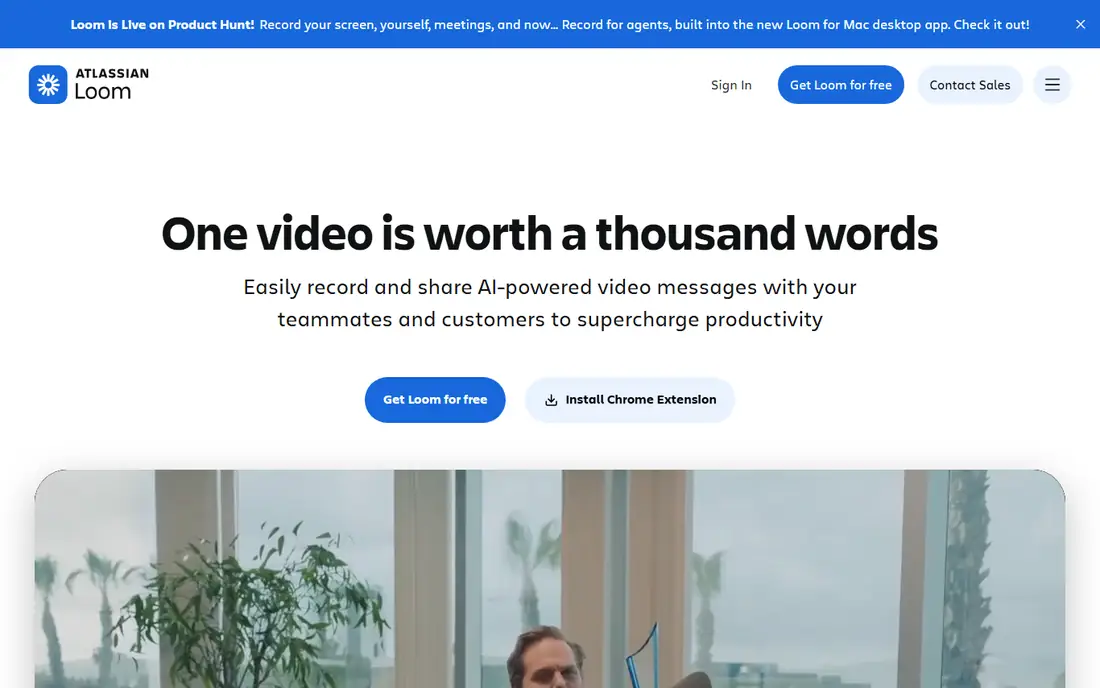
Loom changes the workflow entirely. Instead of recording, editing and uploading, you record your screen and camera, and Loom gives you a shareable link the moment you stop. Teammates can watch, comment and react without downloading anything. Business at $18 per user per month billed annually removes the limits and adds AI summaries, auto chapters and viewer analytics. The free plan allows 25 videos of up to 5 minutes at 720p, which is enough to test the workflow but not enough for regular use. Loom is not a replacement for ScreenFlow editing depth: trimming is basic, and there is no multi-track timeline. For internal updates, bug reports, sales walkthroughs and quick feedback, Loom is far faster than ScreenFlow. For polished courses, pair it with a real editor instead.
What we like- Instant share links, AI summaries and chapters, viewer analytics, very fast to record and send
Watch out for- Free plan is heavily limited, no deep timeline editing, subscription cost grows with team size
#4Snagit
Best for: Quick captures and short how-to clips4.7/5 on
G2 (6,022 reviews, checked Oct 2026)
Visit techsmith.com
Starting priceFrom $39 per year for Snagit Individual
Free planFree trial only
Snagit is TechSmith lighter sibling to Camtasia, and it is excellent at what it targets. It captures screenshots and short screen videos, then annotates them with arrows, callouts, steps and blur with a speed no full editor can match. Templates turn a series of captures into a clean how-to guide in minutes. Snagit Individual costs $39 per year, with a Business tier at $48 per year. The limit is scope: Snagit trims and annotates short clips, but it cannot build a multi-track course video. If your ScreenFlow use is mostly short demos, annotated screenshots and quick answers, Snagit is faster and far cheaper. If you edit long lessons, Camtasia or DaVinci Resolve is the better pick.
What we like- Best-in-class screenshot annotation, quick video capture, templates and stamps, very fast for short clips
Watch out for- Not a full video editor, yearly subscription, Windows and Mac only
#5CapCut
Best for: Short-form social video with screen clips1.2/5 on
Trustpilot (1,347 reviews, checked Oct 2026)
Visit capcut.com
Starting priceFree; CapCut Pro $19.99 per month or $179.99 per year
Free planYes, free tier with watermark-free 1080p export
CapCut is not a screen recorder first, but it is a strong editor for the clips a recorder produces. Record your screen with OBS Studio or your operating system tool, then cut, caption and polish the footage in CapCut. Auto captions, templates and trending effects make a vertical tutorial in minutes, and the free tier exports 1080p without a watermark. Pro at $19.99 per month or $179.99 per year adds 4K export and the full AI toolkit. The weakness is workflow: two tools instead of one, and no built-in screen capture with camera overlay on desktop. For creators who publish short tutorials on TikTok, Reels and Shorts, the CapCut plus OBS Studio combination is free and fast. For long courses, a dedicated recorder-editor such as Camtasia fits better.
What we like- Excellent auto captions and templates, fast for Reels, Shorts and TikTok, works on desktop, mobile and web
Watch out for- Not a dedicated screen recorder, Pro price rose in 2025, shallow tools for long-form courses
#6ScreenPal
Best for: Affordable all-in-one recording, editing and hosting4.5/5 on
G2 (139 reviews, checked Oct 2026)
Visit screenpal.com
Starting price$4 per month billed annually for Solo Deluxe
Free planYes, 15-minute recordings and 10 hosted videos with basic editing
ScreenPal, formerly Screencast-O-Matic, is the budget all-rounder that keeps winning over educators and small teams. It records screen and camera, edits on a simple timeline, hosts the finished video, and adds AI speech-to-text captions. The free plan records up to 15 minutes per video with basic editing and hosts 10 videos. Solo Deluxe at $4 per month billed annually removes the limits and adds the full editor, AI captions and stock media. Solo Max at $10 per month adds AI narration, translation and interactive quizzes. The editor is lighter than ScreenFlow or Camtasia, with fewer effects and no deep multi-track work, but for classroom videos, onboarding clips and quick demos it is more than enough. At this price it is the cheapest credible ScreenFlow replacement.
What we like- Very cheap, recording, editing and hosting in one package, AI captions, good for educators
Watch out for- Editor is lighter than Camtasia or ScreenFlow, free plan is limited, fewer advanced effects
#7Screencastify
Best for: Browser-based recording for classrooms and quick demos4.6/5 on
G2 (83 reviews, checked Oct 2026)
Visit screencastify.com
Starting price$7 per user per month billed annually
Free planYes, limited free videos and recording length
Screencastify is a Chrome extension that records your tab, screen and camera without installing desktop software. Teachers and trainers love it because a student or colleague can record from any Chromebook or browser in seconds. Paid plans start at $7 per user per month billed annually, adding longer recordings, the full editor and AI features. The free plan covers short videos with limits on count and length. The trade is depth. Screencastify edits in the browser, so it cannot match a desktop timeline for complex courses, and it depends on Chrome. For classroom demos, quick feedback videos and teams that live in Google Workspace, it is the fastest option on this list. For polished, long-form training, Camtasia or DaVinci Resolve is the better investment.
What we like- Runs entirely in Chrome, no install needed, easy sharing and classroom tools, quick to start
Watch out for- Browser based, so heavy editing is limited, free plan is restricted, tied to Chrome
Starting priceFree; DaVinci Resolve Studio $295 one-time
Free planYes, the free edition exports 4K with no watermark
DaVinci Resolve is the editor you pair with a free recorder when quality matters most. Record with OBS Studio, then cut, grade and mix in Resolve, and the result can match anything ScreenFlow produces. The free edition includes editing, colour grading, Fusion effects and Fairlight audio, with 4K exports and no watermark. Studio costs $295 once and adds AI tools and HDR extras. The workflow has two steps instead of one, and the learning curve is real: seven pages, dense panels, and a machine that needs a modern GPU for smooth 4K playback. For course creators who want the best-looking finished video and already own a decent computer, the OBS Studio plus Resolve combination costs nothing and outperforms ScreenFlow on colour and audio. For quick recordings, it is overkill.
What we like- Professional editing, colour and audio in one app, free edition is very capable, no watermark
Watch out for- No built-in screen recorder, steep learning curve, needs a strong computer
Which ScreenFlow alternative should you pick
If you are on a Mac and want the closest match, Camtasia is the pick, with a real editor, course tools and Windows support. If you want to spend nothing, OBS Studio for recording plus DaVinci Resolve for editing is the strongest free combination. Loom is the best choice for fast team videos and feedback, where a link beats a file. ScreenPal is the cheapest all-in-one for educators, at $4 a month. Snagit suits short how-to clips and screenshots, and Screencastify suits Chrome-based classrooms. CapCut fits short social tutorials. Pick the tool that matches how you share video, not just how you record it.
Frequently asked questions
Is there a free alternative to ScreenFlow
Yes. OBS Studio is completely free and records screen, camera and audio with no watermark or time limit. DaVinci Resolve is free for editing the footage. Loom, ScreenPal and Screencastify have free plans with limits on length and video count. OBS Studio plus DaVinci Resolve is the strongest free combination for Mac and Windows users.
Which ScreenFlow alternative is best for course creators
Camtasia is the best ScreenFlow alternative for course creators, with a multi-track editor, animations, quizzes and SCORM export. ScreenFlow itself is strong for courses, so switch only if you need Windows support or course-specific tools. ScreenPal is a cheaper option for simpler courses, and DaVinci Resolve suits creators who want the deepest editing control.
Does Camtasia cost more than ScreenFlow
Over time, yes. ScreenFlow costs $199 as a one-time licence, while Camtasia Essentials costs $179.88 per year, so Camtasia passes ScreenFlow total cost in the second year. Camtasia adds Windows support, quizzes and SCORM export, which may justify the subscription. ScreenFlow upgrades are paid separately, so the lifetime gap is smaller than the first-year figures suggest.
Can I record my screen for free on a Mac
Yes. OBS Studio is free on Mac and records screen, camera and audio with no watermark. macOS also has a built-in screen recorder through QuickTime Player and the screenshot toolbar. For editing, DaVinci Resolve and CapCut are free, and iMovie ships with every Mac. That combination covers recording and editing at no cost.
Is Loom a replacement for ScreenFlow
Not for polished courses. Loom is faster for quick team videos, bug reports and feedback because it shares by link instantly, but its editing is basic and the free plan caps videos at 5 minutes. ScreenFlow and Camtasia are better for edited lessons with animations and callouts. Many teams use both: Loom for quick messages and Camtasia for finished training.
Sources we checked (8)
- https://www.techsmith.com/video-editor.html
- https://obsproject.com
- https://www.loom.com
- https://www.techsmith.com/screen-capture.html
- https://screenpal.com
- https://www.screencastify.com
- https://www.blackmagicdesign.com/products/davinciresolve
- https://www.capcut.com
Is your product missing or out of date?
We review this list regularly. Vendors can request a listing, send updated pricing or ask about featured placement.

Shihab Mia · Founder, Rankite
Shihab has 5+ years in B2B and SaaS SEO. He writes Rankite's software buying guides from pricing pages, documentation and public user reviews. More about Shihab.