How we make this list: we compare pricing pages, product documentation and public user reviews. Ratings come from G2, Capterra or Trustpilot, with the date we checked them.
Key takeaways
- Adobe Express is the closest free Canva replacement, with templates, quick actions, and commercially safe AI features.
- VistaCreate suits budget creators who want a generous free template library and scheduling.
- Microsoft Designer is best for prompt-to-design creation, free with a Microsoft account for personal use.
- Figma is the best free route into interface design, though its free plan limits file count.
- Photopea and Pixlr handle photo editing in the browser with no install.
- GIMP and Inkscape cost nothing and do professional-grade photo and vector work, but need more learning time.
- Every free plan caps something, whether downloads, AI credits, premium assets, or storage, so check the limits before you commit.
Quick comparison
Is your product missing or out of date?
We review this list regularly. Vendors can request a listing, send updated pricing or ask about featured placement.
The best free Canva alternatives

#1Adobe Express
Best for: Closest Canva replacement4.5/5 on
G2 (855 reviews, checked Oct 2026)
Visit adobe.com
Starting priceFree
Free planYes
Adobe Express is the closest free alternative to Canva. It offers a large template library, quick actions such as resizing and background removal, and Adobe Firefly generative features that run on a monthly credit allowance on the free plan. Adobe labels its own AI models as commercially safe, which matters for small businesses that sell what they design.
The limits are credit caps and locked assets. Free AI uses are limited each month, and premium templates and assets need the $9.99 per month Premium plan. For small businesses that want branded content with safe AI images, Adobe Express is the strongest free pick.
What we like- Large template library
- Background removal free
- Commercially safe AI images
Watch out for- AI credits limited on free plan
- Premium plan costs $9.99 per month
- Some assets locked
Starting priceFree
Free planYes
VistaCreate focuses on social and print templates at a budget price. Its free plan covers a large template library with 10 GB of storage, and its single paid plan costs $10 per month billed annually and covers up to ten seats, which suits small teams. Scheduling tools help creators plan posts without a separate tool.
The trade off is export quality and asset depth. Free exports use standard quality, and the asset library is smaller than Canva. For budget-conscious creators who want templates and scheduling in one free tool, VistaCreate is a strong pick.
What we like- Generous free template library
- Scheduling included
- One simple paid plan
Watch out for- Standard export quality on free plan
- Smaller asset library than Canva
- Pro costs $10 per month
Starting priceFree
Free planYes
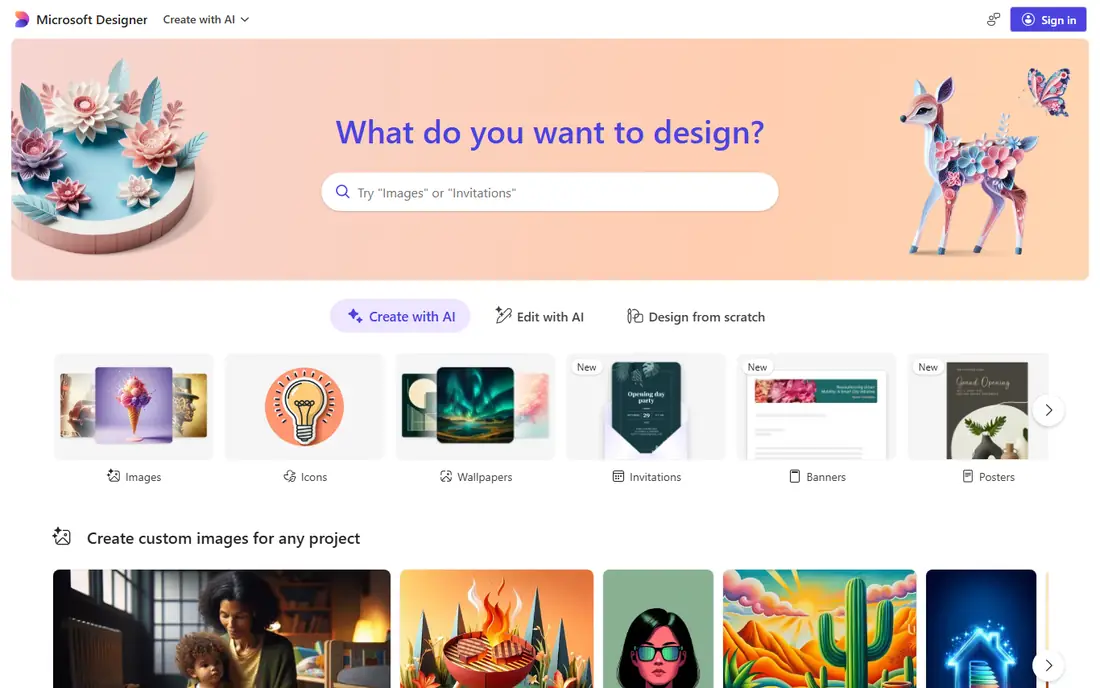
Microsoft Designer takes a different approach: describe a flyer or post in a sentence and it proposes finished layouts. It is free with a Microsoft account, with AI usage limited by credits, and it suits users who want a fast result without browsing templates.
The limits are licensing and credits. Free use is licensed for personal use only, so businesses should check the terms before using designs commercially, and AI credits cap monthly use. For personal projects and quick social posts, Microsoft Designer is the fastest free option.
What we like- Describe a design in a sentence
- Free with a Microsoft account
- Good for quick posts
Watch out for- Free use licensed for personal use only
- AI usage limited by credits
- Smaller template range

#4Figma
Best for: Interface design4.7/5 on
G2 (1,593 reviews, checked Oct 2026)
Visit figma.com
Starting priceFree
Free planYes
Figma is the best free route into interface design. Its free Starter plan suits individuals learning website and app design, with components, auto layout, and real-time collaboration that Canva cannot match for product work. Brand templates in Figma Buzz help teams keep designs consistent.
The trade off is scope and learning curve. The free plan limits you to a small number of files, and simple social posts take longer to build than in a template tool. For designers and teams building products rather than posts, Figma is the best free starting point.
What we like- Professional interface design
- Real-time collaboration
- Components and auto layout
Watch out for- Free Starter plan limits file count
- Steeper learning curve for simple posts
- Paid seats cost $16 per editor

#5Photopea
Best for: Browser photo editing4.6/5 on
G2 (21 reviews, checked Oct 2026)
Visit photopea.com
Starting priceFree
Free planYes
Photopea is a free, ad-supported browser editor with layers that opens PSD, XCF, and Sketch files, which other free tools cannot do. It needs no install and no sign-up, and it handles photo work, masks, and retouching at a professional level in a browser tab.
The limits are ads and templates. The free tier shows ads, and there is no template library for quick social posts. An ad-free premium tier costs about $5 per month. For photo editing without installing software, Photopea is the best free tool available.
What we like- Free with no sign-up
- Opens PSD, XCF, and Sketch files
- Layers and masks
Watch out for- Ad-supported free tier
- No template library
- Needs a browser and internet

#6Pixlr
Best for: Quick AI photo edits4.4/5 on
G2 (751 reviews, checked Oct 2026)
Visit pixlr.com
Starting priceFree
Free planYes
Pixlr offers quick photo edits and AI image tools in the browser, with a simple editor for fast fixes and an advanced editor for layered work. Its free tier covers everyday edits, and the paid tier starts from about $1.49 per month billed annually, which is among the cheapest paid upgrades on this list.
The trade off is credit caps and precision. Free AI uses are capped, and Pixlr is less precise than desktop editors such as GIMP for detailed work. For fast photo edits and AI retouching on a budget, Pixlr is a good pick.
What we like- Quick edits in browser
- AI tools included
- Cheap paid tier from about $1.49 per month
Watch out for- AI credits capped on free plan
- Ads on free tier
- Less precise than desktop editors

#7GIMP
Best for: Free desktop photo editing4.3/5 on
G2 (1,484 reviews, checked Oct 2026)
Visit gimp.org
Starting priceFree
Free planYes
GIMP is free, open source photo editing software for desktop that does professional-grade work with no subscription and no catch. It handles layers, masks, retouching, and color work, with a large plugin library that extends it further. For users who want to own their software outright, GIMP is the standard free choice.
The trade off is learning time. GIMP needs more patience to learn than Canva or Adobe Express, and its interface feels dated next to modern tools. For serious photo editing at zero cost, GIMP is unmatched.
What we like- Free forever
- Professional-grade editing
- No subscription
- Large plugin library
Watch out for- Steep learning curve
- Interface feels dated
- No template tools
#8Inkscape
Best for: Free vector illustration4.4/5 on
G2 (417 reviews, checked Oct 2026)
Visit inkscape.org
Starting priceFree
Free planYes
Inkscape is free, open source vector illustration software for logos, icons, and illustrations. Vector output stays sharp at any size, which matters for print, signage, and merch, and the tool costs nothing with no subscription. For logo and icon work, Inkscape is the best free option.
The limits are learning curve and scope. Inkscape needs time to learn, and it does not replace a photo editor for retouching. Pair it with GIMP for a complete free design setup that covers both vector and photo work.
What we like- Free forever
- Vector logos and icons
- Sharp output at any size
- Open source
Watch out for- Steep learning curve
- No photo editing depth
- Smaller template ecosystem
How we chose
We compared free-plan generosity, template depth, export quality, file format support, and learning curve. Tools that are free in name but unusable without paying scored lower than tools with genuinely useful free tiers. We favored tools that let you export finished work without paying, and noted where caps apply. We did not test any tool hands-on, and prices here reflect published list prices that vendors change often. A free tier that looks generous today can tighten tomorrow, so recheck the limits carefully before you build a long-term workflow around any single free plan.
Buying guide: what to check before you pay
Start with the job you do most often. Template tools suit social posts and flyers, while design tools suit logos, products, and print. Next, check the free-tier caps that matter to you: AI credits, export quality, storage, file count, or premium assets. Ask about commercial licensing too, since some free tiers, such as Microsoft Designer, license personal use only. Check file formats as well, since PSD support matters if you work with designers who use Photoshop. Finally, test two or three tools with a real project, such as a week of social posts, before you commit, because the best tool is the one that fits your workflow and your schedule.
Frequently asked questions
Is there a completely free alternative to Canva?
Yes. GIMP, Inkscape, and Photopea are free with no plan and no catch, apart from ads on Photopea. Adobe Express, VistaCreate, and Pixlr offer free tiers with caps on downloads, AI credits, or premium assets.
Which free Canva alternative is best for social media posts?
Adobe Express and VistaCreate are best for social posts, with large template libraries and quick editing. Microsoft Designer is fastest if you want to describe a post and get layouts back.
Can free tools open Photoshop files?
Yes, Photopea opens PSD files in a browser, and GIMP opens PSD files on desktop. Figma and Inkscape handle other professional formats, but Photopea is the most complete free PSD option.
Are free AI design features safe for business use?
It depends on the tool. Adobe labels Firefly models as commercially safe, while other free AI tools may carry personal-use-only licenses. Check the license terms before using AI designs commercially.
Should I use a template tool or a real design tool?
Template tools suit fast, recurring posts. Real design tools suit logos, products, and print, where precise control and vector output matter. Many creators use both: a template tool for posts and GIMP plus Inkscape for deeper work, which covers nearly every design job for free.
Sources we checked (0)
Is your product missing or out of date?
We review this list regularly. Vendors can request a listing, send updated pricing or ask about featured placement.

Shihab Mia · Founder, Rankite
Shihab has 5+ years in B2B and SaaS SEO. He writes Rankite's software buying guides from pricing pages, documentation and public user reviews. More about Shihab.
 VistaCreate
 Microsoft Designer