How we make this list: we compare pricing pages, product documentation and public user reviews. Ratings come from G2, Capterra or Trustpilot, with the date we checked them.
What is Chromebook management software
Chromebook management software enrols, configures, secures and supports ChromeOS devices in schools and organisations. It applies Chrome policies to thousands of devices at once, pushes apps and extensions, locks lost Chromebooks, filters the web and gives teachers classroom controls. Schools choose it because Chromebooks are the most common student device, and because Google Admin console alone covers policies but not classroom management, filtering or student safety monitoring. The trade off is that most of the specialist tools price by quote, so the only published prices are Google's free tier and Hapara's starting figure.
Direct answer: Google Admin console is the top pick for every Chromebook school because it is included free with Google Workspace for Education and manages enrolment, policies, apps and users. Hapara is the best pick for classroom management, with pricing starting around $1,500 per school, based on student count. GoGuardian is the best pick for filtering and student safety, though it prices by quote. Start with the Admin console alone, then add Hapara for teachers and GoGuardian or Lightspeed for filtering.
Key takeaways
- Google Admin console is included free with Google Workspace for Education Fundamentals, and it is the only tool a Chromebook school strictly needs.
- Hapara starts around $1,500, priced per student rather than per device, with volume discounts and multi-year agreements.
- Blocksi, GoGuardian, Lightspeed, Securly, FileWave and ClassLink all price by quote, so budget planning needs a sales call.
- A public 2026 district quote priced Blocksi at $3.50 and $1.98 per device per year for two tiers, but that is one district's quote, not a list price.
- Most Chromebook tools work as Chrome extensions, so students can sometimes bypass them when a device delays syncing.
How we picked
We compared eight tools on five points: ChromeOS policy and enrolment depth, classroom management, web filtering and student safety, Google Workspace integration, and pricing transparency. A tool scored well when it was built for ChromeOS rather than adapted from general MDM. Prices come from vendor pricing pages and vendor published comparisons, checked 21 November 2026. Where sources disagree on a price, both figures are printed and the conflict is flagged. Prices are search verified; vendor homepages were not individually opened in the browser for this guide. This guide is scoped to ChromeOS device management, which is distinct from the schools device management guide written in the same run, which covers iPads, Macs, Windows and Chromebooks together with rostering and recovery.
Comparison table
| Tool | Best for | Starting price | Free plan |
| Google Admin console | Every Chromebook school | Free with Workspace for Education | Free, included |
| Hapara | Classroom management | Around $1,500 per school | No free tier |
| Blocksi | Filtering plus classroom control | Quote only | Free trial |
| GoGuardian Admin | Filtering and student safety | Quote only | Free trial |
| Lightspeed Systems | Filtering and classroom control | Quote only | Free trial |
| Securly | Student safety monitoring | Quote only | Free trial |
| FileWave | Cross-platform fleets with Chromebooks | Quote only | Free trial |
| ClassLink | Single sign-on and rostering | Quote only | Free trial |
Which Chromebook management software is best for a small school
A small school should start with Google Admin console alone. It is included free with Google Workspace for Education Fundamentals, and it enrols Chromebooks, applies Chrome policies, manages apps and extensions, and locks lost devices. A school with a few hundred Chromebooks can run on the Admin console for nothing, and add a classroom tool only when teachers ask for it. The first paid step is Hapara, which starts around $1,500 per school, priced per student rather than per device, with volume discounts and multi-year agreements. GoGuardian and Lightspeed add filtering, but both price by quote, so a small school should request quotes from both and compare them before committing.
Do you need a paid Chromebook management plan
A paid plan earns its price when teachers need classroom controls or the school needs filtering and safety monitoring. The Admin console covers policies and enrolment, but it has no teacher view of student screens and no student safety alerts. Hapara adds the Teacher Dashboard and Highlights, which show every student's open browser tabs in real time, for around $1,500 a school. GoGuardian, Lightspeed, Securly and Blocksi add filtering, and their quotes vary by district size and term, so the school should request at least two quotes. The district quote for Blocksi shows the range: $3.50 per device per year for one tier and $1.98 for another, in a 26,000 licence renewal. Price per device per year, not per month, because school budgets run annually.
How to choose Chromebook management software for your school
Choose by what the Admin console cannot do. If teachers need to see student screens, close distractions and share links, pick Hapara, GoGuardian Teacher or Lightspeed Classroom. If the school needs web filtering, pick GoGuardian, Lightspeed, Securly or Blocksi, all of which filter by category and monitor YouTube. Next, check Google Workspace integration: Hapara is built around Google Workspace for Education and Google Drive, while GoGuardian and Blocksi integrate with Google Classroom rostering. Finally, check the extension problem: most Chromebook tools work as Chrome extensions, and monitoring can be spotty if a device delays syncing or a student finds a workaround.
Quick comparison
| Tool | Best for | Starting price | Free plan |
|---|
 Google Admin console | Every Chromebook school, as the base management layer | Free with Google Workspace for Education Fundamentals | Free, included with Workspace for Education |
 Hapara | Schools that run on Google Workspace for Education | Around $1,500 per school, priced per student | No free tier; demo on request |
 Blocksi | Schools that want filtering, classroom control and safety in one platform | Quote only | Free trial, no permanent free tier |
 GoGuardian Admin | Chromebook schools that need filtering and student safety | Quote only | Free trial |
 Lightspeed Systems | Schools that want filtering and classroom control in one platform | Quote only | Free trial |
 Securly | Schools that need student safety monitoring and filtering | Quote only | Free trial |
 FileWave | Schools with mixed fleets that include Chromebooks | Quote only | Free trial |
 ClassLink | Schools that want single sign-on and rostering for every app | Quote only | Free trial |
Is your product missing or out of date?
We review this list regularly. Vendors can request a listing, send updated pricing or ask about featured placement.
These eight tools cover the main ways schools manage Chromebooks in 2026, from Google's own console to specialist classroom and filtering platforms.
Starting priceFree with Google Workspace for Education Fundamentals
Free planFree, included with Workspace for Education
Google Admin console is the management layer every Chromebook school already has. It is included free with Google Workspace for Education Fundamentals, and it enrols Chromebooks, applies Chrome policies, manages apps and extensions, and locks lost devices. Devices enrol through zero-touch enrolment when bought through an authorised reseller, and they configure themselves on first boot. The console also manages users, groups and organisational units, so a school can apply different policies to staff, students and exam devices. The limits are the classroom and safety features: there is no teacher view of student screens, no student safety alerts and no web filtering beyond Chrome policies. Every other tool in this guide adds to the Admin console rather than replacing it.
What we like- Free and included, native Chrome policies that are hard to bypass, zero-touch enrolment, manages apps, extensions and users together
Watch out for- No teacher classroom view, no student safety alerts, filtering needs a separate tool, reporting is basic
#2
Hapara
Best for: Schools that run on Google Workspace for Education
Visit hapara.com
Starting priceAround $1,500 per school, priced per student
Free planNo free tier; demo on request
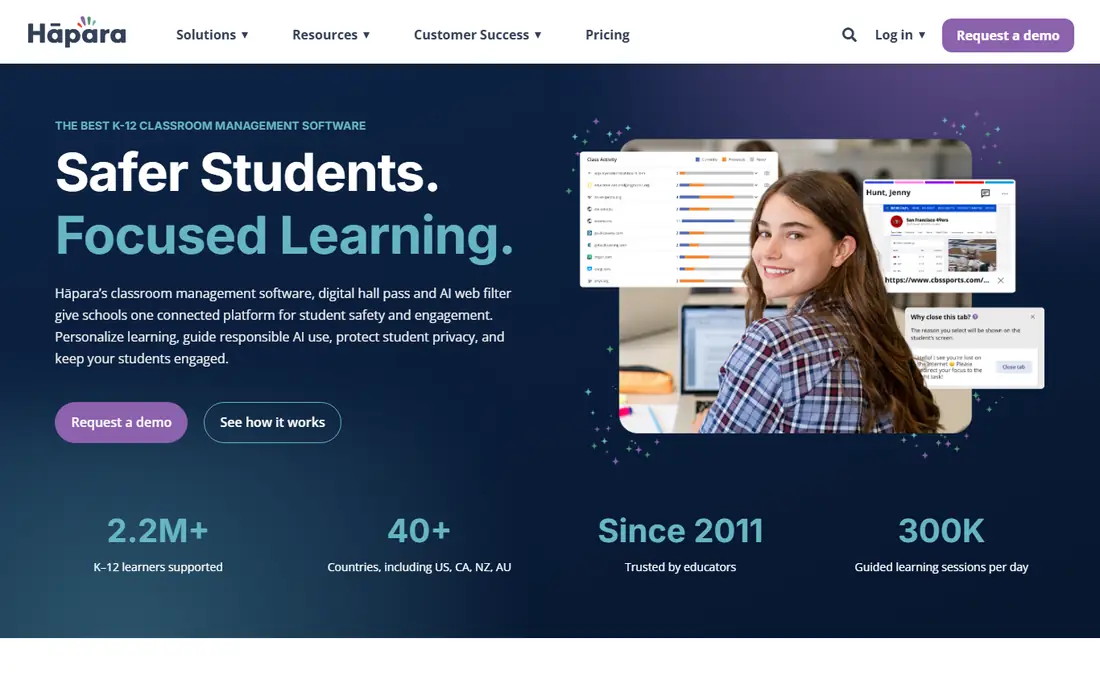
Hapara is the classroom management suite built around Google Workspace for Education. Its Teacher Dashboard lets teachers see each student's progress in Google Drive files and leave feedback without opening each document. Hapara Highlights shows every student's open browser tabs in real time, so a teacher can close a distraction or share a link with the class, and it works in Chrome and Microsoft Edge. Hapara also sells a web filter, student wellness tools and a digital hall pass, so a school can buy several products from one vendor. Pricing starts around $1,500, is based on the number of students rather than devices, and comes with volume discounts and multi-year agreements; the exact price needs a quote. Hapara is the closest fit when teaching runs on Google Workspace, but it manages classrooms, not devices, so the Admin console still handles enrolment and policies.
What we like- Built around Google Workspace and Google Drive, Teacher Dashboard shows student work in real time, Highlights shows open browser tabs, also sells a web filter and wellness tools
Watch out for- No free tier, exact price needs a quote, classroom focused rather than device focused, no device recovery tools
#3
Blocksi
Best for: Schools that want filtering, classroom control and safety in one platform
Visit blocksi.net
Starting priceQuote only
Free planFree trial, no permanent free tier
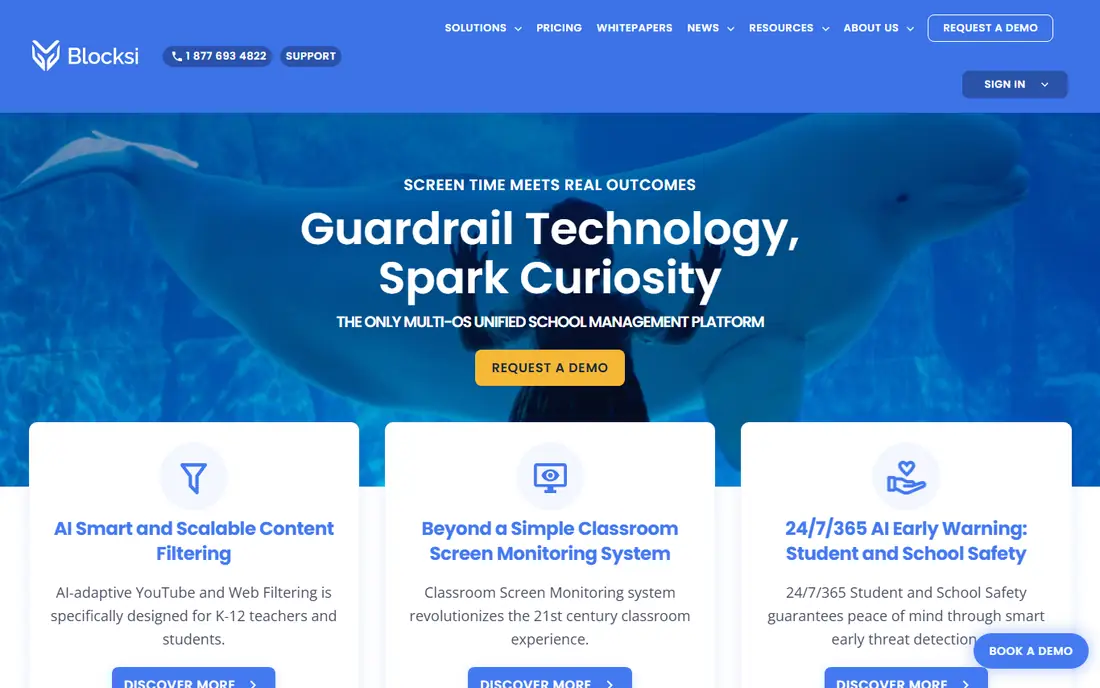
Blocksi is a cloud based K-12 platform that combines classroom management, district-wide content filtering and 24/7 student safety monitoring. Its multi-layered filtering spans more than 85 web categories and 30 YouTube categories, with DNS, time and policy controls, plus anti-theft features such as geolocation and device locking. AI safety alerts monitor activity across Google and Microsoft platforms, flagging cyberbullying, self-harm, threats and inappropriate content, with human review behind the alerts. Pricing is quote only, with a free trial for evaluation. A public 2026 renewal quote from Moore Public Schools priced Blocksi at $3.50 per device per year for one tier and $1.98 for another, across 26,000 licences, but that is one district's negotiated quote, not a list price. Monitoring relies on a Chrome extension, so it can be spotty when a device delays syncing.
What we like- Filtering across 85 web and 30 YouTube categories, AI safety alerts with human review, classroom screen monitoring, anti-theft with geolocation and device locking
Watch out for- Quote only pricing, extension based monitoring can be spotty, admin dashboard reported as tiered separately by one reviewer, mixed OS filtering is weaker
#4
GoGuardian Admin
Best for: Chromebook schools that need filtering and student safety
Visit goguardian.com
Starting priceQuote only
Free planFree trial
GoGuardian Admin is the device management and filtering platform built for schools that run Chromebooks and Google Workspace. It manages devices, filters the web, monitors student safety and gives teachers classroom controls, all from a console designed for school IT teams rather than business administrators. It is widely used in US schools, and its filtering is the feature most districts buy it for. Pricing is quote only, with no published entry price, so the district must request a quote before budgeting. The limit is focus: it is built around Chromebooks and Google, so a school with iPads or Windows devices needs a companion tool. GoGuardian also sells GoGuardian Teacher for classroom management, which pairs with Admin for the full stack.
What we like- Built for Chromebooks and Google Workspace, strong filtering and student safety monitoring, teacher classroom tools, widely used in US schools
Watch out for- Quote only pricing, Chromebook and Google focused, admin console takes learning, reporting needs the higher tiers
Starting priceQuote only
Free planFree trial
Lightspeed Systems is a school focused platform that combines web filtering, classroom management and device management. Its filtering blocks harmful content and monitors student activity, while its classroom tools let teachers see student screens, lock devices and share content. It covers Chromebooks, Windows, Mac and iOS, which makes it one of the few tools here that manages a mixed school fleet from one console. Pricing is quote only, with no published entry price and no free tier, so the school must talk to sales before it can budget. The platform is purpose built for education, not adapted from business software, which shows in the teacher workflows. Lightspeed Classroom is the teacher facing part, and it works on Chromebooks alongside the filtering.
What we like- Strong web filtering and student safety tools, classroom management with teacher controls, covers Chromebooks, Windows, Mac and iOS, purpose built for schools
Watch out for- Quote only pricing with no published entry price, sales call required before budgeting, reporting depth varies by tier
#6
Securly
Best for: Schools that need student safety monitoring and filtering
Visit securly.com
Starting priceQuote only
Free planFree trial
Securly is the student safety and filtering platform that many US districts pair with Google Admin console. It filters the web, monitors student activity for self-harm and bullying signals, alerts school staff, and gives parents and guardians visibility into their child's online activity. It covers Chromebooks and other platforms, and it works alongside the Admin console rather than replacing it. Pricing is quote only, with no published entry price. The safety monitoring is powerful and sensitive: schools must handle the alerts and the privacy implications with care, and involve parents in the policy. Securly Classroom adds the teacher view of student screens, which the Admin console lacks.
What we like- Strong student safety monitoring with alerts, web filtering built for schools, covers Chromebooks and other platforms, parent and guardian tools
Watch out for- Quote only pricing, safety monitoring raises privacy questions to handle with care, full feature set needs the higher tiers
#7FileWave
Best for: Schools with mixed fleets that include Chromebooks4.7/5 on
G2 (20 reviews, checked Oct 2026)
Visit filewave.com
Starting priceQuote only
Free planFree trial
FileWave is the cross-platform endpoint management tool that many schools use when the fleet mixes Chromebooks with Mac, Windows, iOS and Android. It handles imaging, app deployment, patching and device policies from one console, and it is built for education, with school specific workflows and pricing by quote. A self-hosted option is available for districts with data residency requirements. Pricing is quote only, with no published entry price, so the district must request a quote. The interface shows its age compared with the Admin console or GoGuardian, and setup takes longer because the product surface is large. A Chromebook only school will find the Admin console plus a filtering tool simpler; FileWave earns its place when the fleet spans four platforms.
What we like- True cross-platform management, strong in education, imaging and app deployment, self-hosted option available
Watch out for- Quote only pricing, interface feels dated, setup takes longer than cloud only rivals, smaller community than Google or GoGuardian
#8
ClassLink
Best for: Schools that want single sign-on and rostering for every app
Visit classlink.com
Starting priceQuote only
Free planFree trial
ClassLink is the identity and rostering platform that sits alongside Chromebook management in most school districts. It gives students and teachers single sign-on to thousands of apps, connects the student information system to every classroom tool through its Roster Server, and shows analytics on which apps are actually used. It works across platforms, so it suits a school with Chromebooks, iPads and Windows laptops together. Pricing is quote only, with no published entry price. ClassLink is not a full MDM on its own: it does not push Chrome policies or lock lost Chromebooks, so it pairs with Google Admin console rather than replacing it. It also integrates with Hapara, which makes the pair a common choice for Google Workspace schools.
What we like- Single sign-on for thousands of apps, roster server connects the student information system, analytics show app usage, works across platforms
Watch out for- Quote only pricing, not a full MDM on its own, setup needs rostering work with the student information system
Frequently asked questions
Is Google Admin console enough to manage Chromebooks
For policies and enrolment, yes. The Admin console enrols Chromebooks, applies Chrome policies, manages apps and extensions, and locks lost devices, all free with Google Workspace for Education. It is not enough for classroom management or student safety: there is no teacher view of student screens, no safety alerts and no web filtering beyond Chrome policies. Most schools add one classroom tool and one filtering tool on top of the console, and the console stays as the base layer that every other tool builds on.
How much does Chromebook management software cost
Google Admin console is free with Google Workspace for Education Fundamentals. Hapara starts around $1,500 per school, priced per student. Blocksi, GoGuardian, Lightspeed, Securly, FileWave and ClassLink all price by quote, so the district must request pricing before it can budget. A public 2026 district quote priced Blocksi at $3.50 and $1.98 per device per year for two tiers, which shows the range a large district can negotiate, but a small school will pay more per device.
Can Chromebook management software filter the web
Yes, but not through the Admin console alone. GoGuardian, Lightspeed, Securly and Blocksi all filter by category, with YouTube controls and time based policies. The Admin console can block sites through Chrome policies, but it has no category filtering, no safety alerts and no reporting on student activity. A school that needs filtering should buy it as part of the bundle: GoGuardian and Lightspeed both combine filtering with classroom management, so the school pays once for both.
How do schools enrol thousands of Chromebooks
Through zero-touch enrolment. The school buys Chromebooks through an authorised reseller, assigns them to its Google Admin console, and each device configures itself on first boot with the school's policies, apps and Wi-Fi. No one touches the device before it reaches the student. The Admin console, GoGuardian, Lightspeed and FileWave all support zero-touch enrolment, which is what makes a 5,000 device rollout possible with a small IT team. Without it, every Chromebook needs hands-on setup.
What is the difference between Hapara and GoGuardian
Hapara is classroom management built around Google Workspace: the Teacher Dashboard shows student work in Google Drive, and Highlights shows open browser tabs. GoGuardian is filtering and student safety first, with device management and classroom tools alongside. A school buys Hapara when teachers need to see student work and manage the lesson, and GoGuardian when the priority is keeping students safe online and filtering the web. Many schools buy both, with the Admin console underneath.
Sources we checked (8)
- https://admin.google.com
- https://hapara.com
- https://www.blocksi.net
- https://www.goguardian.com
- https://www.lightspeedsystems.com
- https://www.securly.com
- https://www.filewave.com
- https://www.classlink.com
Is your product missing or out of date?
We review this list regularly. Vendors can request a listing, send updated pricing or ask about featured placement.

Shihab Mia · Founder, Rankite
Shihab has 5+ years in B2B and SaaS SEO. He writes Rankite's software buying guides from pricing pages, documentation and public user reviews. More about Shihab.